Menu | Create > New Feature > Point |
Tool |
|
Menu | Create > New Feature > Point |
Tool |
|
For complete information about creating new features, see Create.
Related commands:
Procedure
1. Select the Create Point Feature command.
2. Select an acronym and set any necessary attributes as described in Create.
You can enter the coordinates in the dialog box or digitize the point after you click OK.
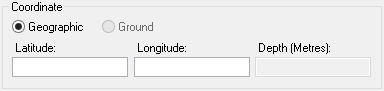
If you select Geographic, the position is in Latitude and Longitude. If you select Ground, the position is in Eastings and Northings. Geographic coordinates can be added in the following formats: • Degrees and decimals. For example, • Degrees and minutes. For example, • Degrees, minutes and seconds. For example, Ground coordinates are added in the units specified on the Display Units tab of the Options dialog box. Both coordinates must be entered. |
3. [Optional] Enter the coordinates:
• Select the coordinate type: Geographic or Ground.
• Type the coordinates.
4. Click OK.
If you did not enter the coordinates, the cursor changes (  ).
).
5. Click at the location of the point feature.
6. Refresh the display.
The new feature is added.
