Menu | Tools > Run Process Designer Model |
This command will run a process model file that was created in Process Designer. The command opens a dialog box which displays pre-defined process parameters, for example, the location of data. Once the values for these parameters are entered, the full process model is run.
Procedure
1. Select the Run Process Designer Model command.
The Select a Process Model to Run dialog box is displayed.
2. Browse to and select a *.processmodel Process Definition file.
3. Click Open.
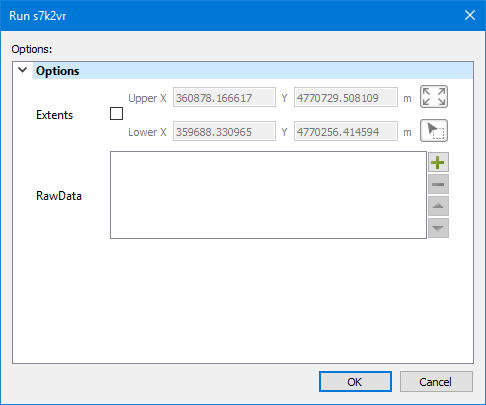
The Run dialog box will appear, displaying the process model file name in the title bar.
The Run dialog box displays fields that require specific data, such as the location of the dataset or surface being processed. These requirements will have been set in Process Designer, in the properties of processes that make up the model file.
4. Click the Add button  .
.
5. In the Open files dialog box, select the required file or files.
6. Click Open.
7. Click OK to run the process model file.
The processing status box will be displayed with a progress bar, and output is reported for each process in the Output window.