The Display window displays the datasets that are currently open in the application and selected for display. You can have one 3D display window and multiple 2D display windows open at the same time, if desired. Properties for the Display window are set using Display Window Properties.
The order in which data is visible in the Display window is controlled by the Layers window. See Layers Window.
The Display window is the only window that cannot be moved or docked.
Band/layer tooltips.
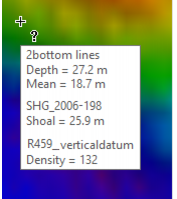
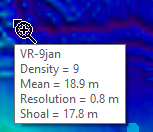
In the 2D window, moving your cursor over a surface or coverage will make a tooltip box appear. This will display the name of the source of the active dataset, and the value of the active band or layer at the location under the cursor. The image below shows an example of values for four of the bands in a CSAR surface.
By default the Z Band (depth) is displayed as the active band. You can set another band as active, by selecting the band (or bands) by name from the Tooltip Bands field in the Display Layer Properties Window.
You can also set the tooltip to include source names and values for all coverages in the view, by setting the Show all visible Coverages in tooltip option in Tools > Options > Coverages to True.
This will cause all raster grids, point clouds, reference models, TINs and variable resolution surfaces that are turned on, and have data at the cursor location, to be listed in the tooltip as sources along with their band values. The example below displays these values for three different coverages.