Attribute | Description |
Threshold | Range limits are defined by threshold attributes. Each range is defined using shallowest sounding or maximum drying height within the range. The order is from the deepest sounding to the highest drying height. The following list is an example of the threshold order <!--This range applies to all soundings 30 metres or deeper.--> <Range Threshold="30"> <Element Precision="1.0" Rounding_point="1.0/> </Range> <!--This range applies to all sounding between 20 and 29.999--> <Range Threshold="20"> <Element Precision="1.0" Rounding_point="1.0/> </Range> <!--This range applies to all soundings between 19.999 and 0.--> <Range Threshold="0"> <Element Precision="1.0" Rounding_point="1.0/> </Range> <!--This range applies to all drying heights between -0.999 and -10 .--> <Range Threshold="-10"> <Element Precision="1.0" Rounding_point="1.0/> </Range> <!--This range applies to all drying heights -10.999 and -20.--> <Range Threshold="-20"> <Element Precision="1.0" Rounding_point="1.0/> </Range> |
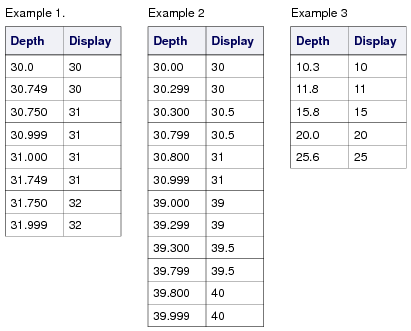
PrecisionRounding Point | These two attributes are located in the Example 1: <Range Threshold="30"> <Element Precision="1.0" Rounding_point="0.750"/> </Range> This means that for soundings deeper or equal to 30, the value will be increased to the next metre at every 0.750. Example 2: Element tags can be grouped together. For example, the following range: <Range Threshold="30"> <Element Precision="1.0" Rounding_point="0.8"/> <Element Precision="0.5" Rounding_point="0.3"/> </Range> For soundings deeper than 30: • If the decimal part is greater or equal to 0.8 then round to the deeper unit. • Else if the decimal part is greater or equal to 0.3, round to 0.5. Example 3: A truncating effect can be created by setting the Precision and Rounding_Point to 1.0. For example: <Range Threshold="10"> <Element Precision="1.0" Rounding_point="1.0" /> </Range> Results: |