The selected window is moved and a group of positioning icons are displayed.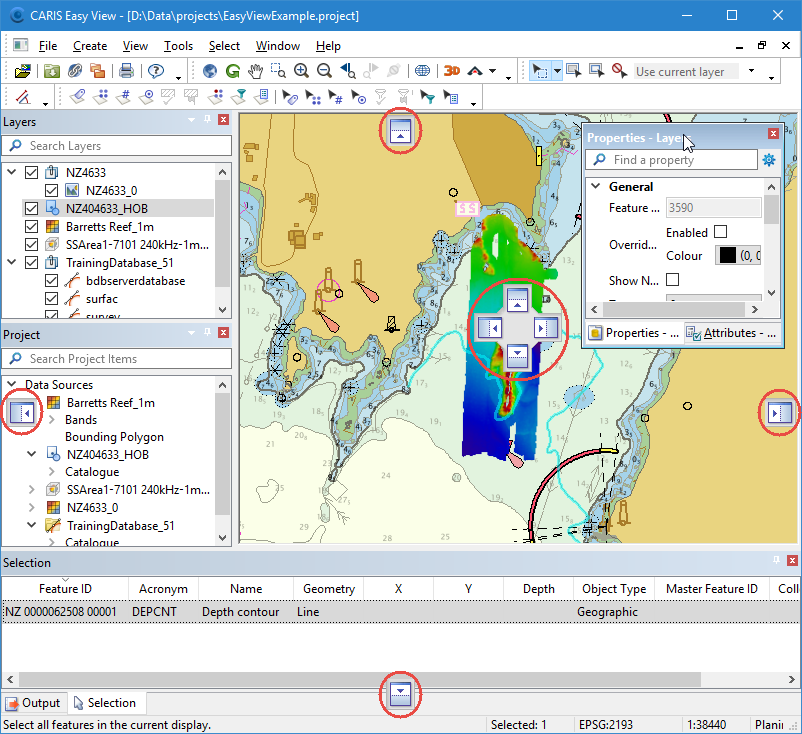
Properties and data are displayed in windows inside the main window. Each of these windows can be docked anywhere within the main window, within another window, or left floating. All windows, except the Display window, and all the tabs within windows can be moved and docked separately or within any other window.
A window is docked if it is locked in place within the interface. A window is floating if it is a separate standalone window. Floating windows can be moved outside of the application’s interface.
When a window is docked inside another window, it is displayed as a tab. If you move a window by dragging its title bar, you will move all of the tabbed windows contained within it. If you move a window by dragging the tab, only that selected window is moved.
Move a window
To move a window:
1. Click on the title bar or tab and drag.
The selected window is moved and a group of positioning icons are displayed.
This table explains the positioning icons.
Icon | Description |
| If the window you are moving is over the display window, the centre icon will look like this. This lets you position the window to the top, right, bottom or left of the Display window. |
| If the window you are moving is over any window other than the Display window, the centre icon will look like this. This lets you position the window to the top, right, bottom or left of the window, or make it a tabbed window. |
| These icons are located at the outside edge of the main window. They let you position the window at the top, right, bottom, or left of the main window. |
2. Move the cursor over one of the icons.
The area in which the window will be docked is shaded blue.
3. Release the mouse button.
The window is docked.
If you release the window when it is not over an icon, the window will float.
Show and hide a window
The title bar of each window contains the Auto-Hide tool, which looks like a pushpin. The position of the pin controls the behaviour of the window.
• If the pin is upright ( ), the window will remain visible unless specifically hidden, and any tab will be displayed across the bottom.
• If the pin is rotated ( ), the window will be hidden when the mouse pointer is not inside it and the tabs will be displayed against the nearest edge of the main window.
To change the window behaviour:
1. Click the Auto-Hide tool.
Default windows
The default Easy View windows are:
Window | Description |
Project | The Project window lists all open data sources, with their features, bands or attribute items displayed below each data source name. The Project window can typically be thought of as the catalogue of the source. Depending on their data type, many of these source items in this window can be added as additional layers to the Layers window using the Add Layer command on the right-click menu. When all related data sources have been opened in the Project window, they can be saved as a project, and reopened as one unit by using the Open Project command. |
Layers | The Layers window lists the display layers currently available for the data open in the application. Typically, when a source is opened in the application, a display layer is added to the Layers window. These layers control which data is visible (drawn) in the Display window(s) and which data will be affected when a process is run. Layers can include coverages, background data (such as CARIS maps and image files) and sets of objects such as contours and soundings. From the Layers window, you can: • display or hide layers • choose the active layer • control the order in which layers are displayed, which is bottom to top by default, meaning the last layer in the list is displayed on top of all other data • duplicate a layer • create filter layers (dependent on the data format) • group related layers Layers are displayed in the Display window if there is a check mark beside the layer name. |
Selection | The Selection window displays information about data or features selected in the Display window. The information displayed depends on the type of data selected. For any fields that display coordinates or measurements, the format and units of these values are controlled by the Units settings in Tools > Options. For example, coordinates can be displayed as Geographic or Ground, length and area values can be projected or geodetic, and depth values can be in a number of units |
Output | The Output window displays feedback from various activities, such as opening files or exporting data. Feedback includes progress messages, error messages, and the success or failure of an activity. |
Properties | The Properties window displays information about selected layers and data sources. Each type of layer has different properties. |
Attributes | The Attributes window displays a table containing attribute values that belong to the currently selected data. Rows containing mandatory attributes are green when completed and pink if not completed. |
Most windows have pop-up menus that let you perform other tasks using the data in the window.


