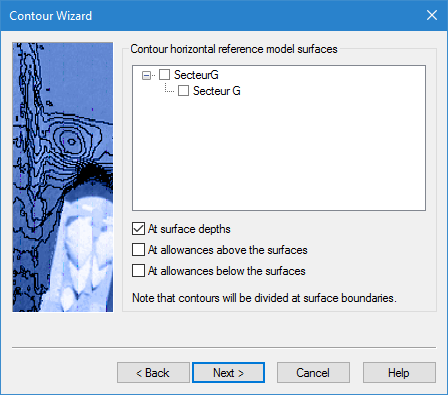
In this step of the Contour Wizard, you select the templates containing the surfaces that will be used as a reference.
Interface
The Reference Model Surfaces step of the Contour Wizard uses the following dialog box.
Option | Description |
Contour horizontal reference model surfaces | The templates containing the surfaces for which contours will be created. All complete templates (key depths defined) that are open at the time are listed and available for selection. You can select or deselect all templates in a reference model by clicking the check box for the reference model level. 1. Click the check box for each template to be included in the contour generation. |
At surface depths | Create contours for the surfaces in each selected template at the surface depth. This option can be used in combination with the other options, resulting in contours being created at each elevation level. This option is selected by default. |
At allowances above the surfaces | Create contours for the surfaces in each selected template at the depth specified for allowances above surfaces. This option can be used in combination with the other options, resulting in contours being created at each elevation level. |
At allowances below the surfaces | Create contours for the surfaces in each selected template at the depth specified for allowances below surfaces. This option can be used in combination with the other options, resulting in contours being created at each elevation level. |
Procedure
1. Select the relevant reference model and/or individual templates from the list.
2. Click the check boxes to select the elevation levels at which to create contours.
3. Click Next.