Menu | File > Export > Model to DXF File |
Export open reference model data to a DXF file.
3D surfaces and 3D lines are exported as 3D lines; other features are exported as 2D lines. |
Interface
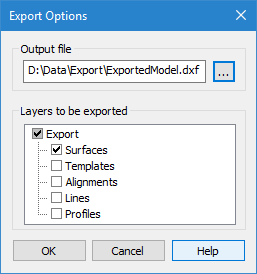
The Export Model to DXF File command uses the following dialog box.
Option | Description |
Output file | The name and location for the resulting DXF file. 1. Click the browse (...) button. 2. Navigate to a location for the file and enter a file name. 3. Click Save. |
Layers to be exported | The layers from the reference model to be included in the export. A layer is listed for each spatial type of reference model feature present in the model. Selecting the “Export” layer automatically selects or deselects all layers in the list. If clicked when the dialog box is first opened, it will deselect all layers. Clicking it again will select all layers. When only certain layers are selected, the “Export” check box is shaded in grey. |
Procedure
1. Open a reference model if one is not already open.
2. Select the (Export) Model to DXF File command.
The Export Options dialog box is displayed.
3. Define a name and location for the new file.
4. Click the check boxes for the layers to include in the export.
5. Click OK.
The progress of the export can be seen in the Status bar. When finished, a message is displayed in the Output window stating the start and stop times of the export. The exported reference model can be opened as an AutoCAD map.