Menu | Tools > Coverages > Generalize |
Create a product surface by generalizing an existing raster surface. Product surfaces are typically created before you create layers of new vector data (for example, contours and soundings), to be used to create cartographic products.
A product surface is created through a one- or two-stage process:
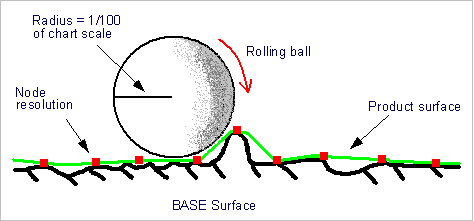
• 3D Double Buffering: This process smooths the raster surface to reduce clutter and highlight significant shoals. Double buffering is like rolling a ball over the surface at an interval determined by the suface’s node resolution. The radius of the ball is determined from the chart scale (radius = 1/100 of scale). As the ball is rolled over the surface, the surface is smoothed, but the shoals are retained. The concept of double buffering is illustrated below.
• Defocusing: This is an optional process that spreads each shoal depth over an area defined by the horizontal error. The process uses an ellipsoid of rotation around each node with the horizontal error as the semi-major axis. Nodes within the ellipse are adjusted up to the surface of the ellipse. See the graphic below.
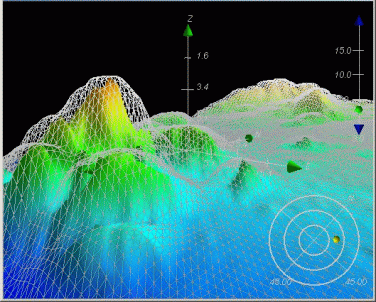
The webbed surface overlaying the raster surface represents the area after defocusing has taken place. The shoals are preserved, but without the sharply defined detail of the original coverage.
Interface
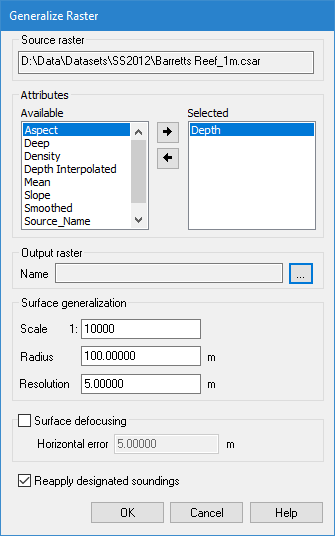
The Generalize Raster command uses the following dialog box.
Option | Description |
Source raster | The Source raster is defined by the raster surface that was selected at the time the command was initiated. This field cannot be changed. |
Attributes | The bands to include as contributor bands in the resulting product surface. To select bands: 1. Select a band from the Available list. 2. Click the right-arrow button to move the attribute to the Selected list. Bands can be removed from the Selected list by selecting them in the list and clicking the left-arrow button. The primary Z band is mandatory and cannot be removed from the Selected list. |
Output raster | The name and location for the new product surface. 1. Click browse (...) to open a Save As dialog box. 2. Enter a name and select a location for the product surface. |
Scale | The scale to be used to generalize the source surface. The surface scale should match the product scale. For example, if you are creating a product surface to be used for an ENC approach to a harbour, use the scale for an approach. The scale determines the radius used to generalize the contours of the surface. 1. Type the scale that best suits the type of chart you have selected. |
Radius | The Radius value to use for generalizing. This value changes automatically based on the Scale value, but can be entered manually, if desired. |
Resolution | The node spacing for the generalized product surface. If the output raster resolution is less than the resolution of the selected surface, an alert message is displayed and a new resolution must be entered to complete the generalization process. 1. Type a value in the field. |
Surface Defocusing | For the surface defocusing operation, you must apply a horizontal error value. This value must be derived from the error values associated with the data and it must be greater than or equal to the output resolution. You must know your data to apply the horizontal error correctly. 1. Click to the check box to enable Surface defocusing. 2. Type a Horizontal error value. |
Reapply Designated Soundings | Enable this option to ensure that designated soundings are retained in the resulting surface. This option is only available if the source data contains designated soundings. Otherwise, the field will be disabled. |
Procedure
1. Select a raster surface in the Layers window.
2. Select the Generalize command.
3. Select the Attributes to include in the generalized surface.
4. Click browse (...) and specify a name and location for the resulting file.
5. Change the Scale, Radius and Resolution values, if needed.
6. Set any other necessary options.
7. Click OK.