Menu | Database > Attachments |
The Database Attachments command allows you to link files to any database object. The attachments can be in any format. Attached files are saved to the root folder (node location) of the database. Once linked, all attachments for a selected object will be listed in the Attachments dialog box when the command is accessed.
Attached files are also visible under the Attached Files attribute in the Attributes window and the Selection window when the database object is selected. This field is populated with a comma‑separated list of all files attached to the selected database object. This attribute also allows searching for database objects with attachments through the various filter tools available in the application.
Files cannot be attached to a database object with an active transaction. If you attempt to attach a file to an object with unsaved changes, you will be prompted to save the changes before you can add files. |
Any user with the appropriate permissions can access the attachments in a database object when they have the database object selected. A pop-up menu in the dialog box provides the following functions when an attachment is selected in the dialog box:
• Export: download the attached file(s) to your computer. This command displays a Browse for Folder dialog box that allows you to choose the location for the file.
• Open: open the attached file(s) locally using the applications on your computer. The file(s) will be saved temporarily to the default Windows Temp folder found at: C:\Users\<username>\AppData\Local\Temp
• Delete: delete the selected attachment from the database object. You will be asked to confirm the deletion before it is performed. The file will then be removed from the root folder of the database and will no longer be associated with the database object.
• Select All: select all attachments in the list. Once selected, the other pop-up menu commands can be applied to all of the attachments.
Interface
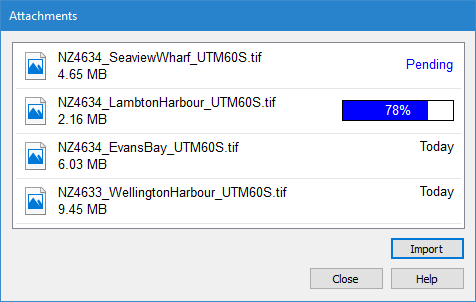
The Attachments command uses the following dialog box.
Option | Description |
Attachments list | A list of all files attached to the selected database object and details about each attachment. The details include: • the name of the file • the size of the file • the status of the upload • the date the file was attached |
Import | Select a file to attach to the database object. You can attach multiple files in multiple formats in a single use of the command. 1. Click the Import button to launch a Select Files to Attach dialog box. 2. Navigate to and select the files you want to attach and click Open. |
Procedure
1. Connect to a database.
2. Select a database filter layer in the Layers window.
3. Select a database object in the Display window.
4. Select the Database Attachments command.
The Attachments dialog box is displayed. The dialog box is empty if the selected object does not have any attachments associated with it.
5. Import the necessary files.
The files will be listed in the Attachments dialog box with a progress bar for each file being loaded.
If the files are small in size, the load may complete before the progress bar is displayed. |
6. [Optional] Right-click an attachment and perform any of the available commands.