Menu | View > Display Window Properties |
The display properties for the active Display window are set using the View > Display Window Properties dialog box. The properties set here include the scale, coordinate reference system, measurement reference, and coordinate type settings for the active view.
The coordinate type and measurement reference settings previously were global settings controlled through Tools > Options, but can now be configured independently for each view in the Display window using the Display Window Properties settings. |
The Display window can contain more than one view space. If you are creating a new view, use the options in Tools> Options to set display properties.
Related commands: Coordinate Reference System Selection
See also: Display Window
Interface
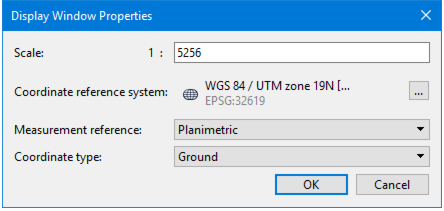
The Display Window Properties command uses the following dialog box:
Properties than can be set are:
Option | Description |
Scale | The scale of the active 2D view or the elevation of the active 3D view. This field supports percent-based scales as well as decimal-based scales. (This command replaces the function previously set using the Change Scale command.) |
Coordinate Reference System | The current coordinate reference system. Click Browse to change. See Coordinate Reference System Selection. |
Measurement reference | Select the reference system used for distances, angles and areas in the Display. This setting is displayed in and can be changed in the Status bar Choose either: • Geodetic: Uses the coordinate reference system (CRS), specifically the ellipsoid, of the view. • If the view is not georeferenced, N/A is displayed for areas, distances and angles. Areas are computed using a localized Albers equal area projection; lengths are computed using Vincenty's algorithm. • Planimetric: Uses the coordinate reference system of the view for projected or engineering CRS. If the CRS of the view is geographic, N/A is displayed for areas, distances and angles. |
Coordinate type | Ground or Geographic |
Procedure
1. Select a layer or band from the Layers window or Project window.
2. Select the Display Window Properties command.
3. Set display options.
4. Click OK to apply settings.