Menu | Tools > TIN > Digitize Feature > Coverage Hole |
Tool |
|
Pop-up | TIN Editor > Digitize Feature > Coverage Hole (Layers window) |
Menu | Tools > TIN > Digitize Feature > Coverage Hole |
Tool |
|
Pop-up | TIN Editor > Digitize Feature > Coverage Hole (Layers window) |
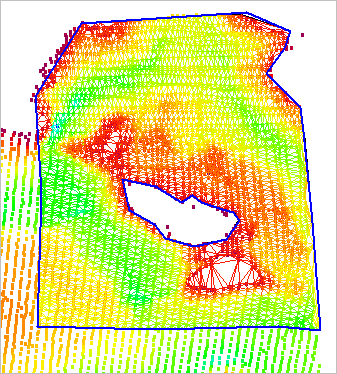
The Coverage Hole command is used to create hole objects in a TIN. If your data crosses areas of land, or areas without data, you can use a coverage hole object to cut these areas from the TIN.
You can create multiple hole features on a single TIN as long as the features do not overlap.
By default, the object is digitized using the point‑to‑point method. You are not limited to this method. There are several digitizing methods available, in particular, the Grab function, which allows you to use the existing geometry of another feature to create the boundary. You can switch digitizing methods at any time without damaging the polygon.
Procedure
1. Select the TIN Editor layer in the Layers window.
2. Click the check box to turn on the TIN Editor layer.
3. Select the Coverage Hole command.
4. Click in the Display window to place the first vertex for the new coverage hole.
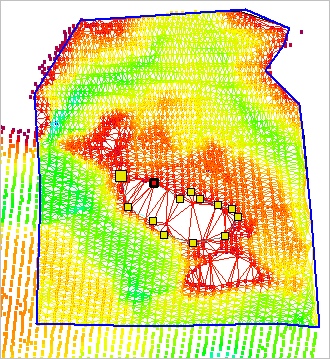
5. Continue adding vertices until the object surrounds the area you wish to remove from the TIN.
Below is an example of a line object around the desired area for the TIN.
6. Once all vertices are added, use one of the following methods to turn off Digitizing mode and complete the coverage hole:
• Press the <Home> or <End> key.
• Right-click and, from the pop-up menu, select Close Area.
The newly digitized coverage hole is added to the display.
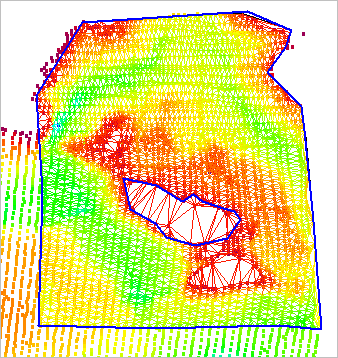
The hole is not automatically cut from the TIN. If you are satisfied with the placement of the hole, update the TIN to apply the hole and save the changes to the TIN Editor layer. The changes will be lost if the TIN is not updated before it is closed.
7. Select the Update TIN command.
Menu | Tools > TIN > Update TIN |
Tool |
|
Pop-up | Update TIN (Display window) |
8. Refresh the Display window.
The area of the TIN covered by the hole is removed.