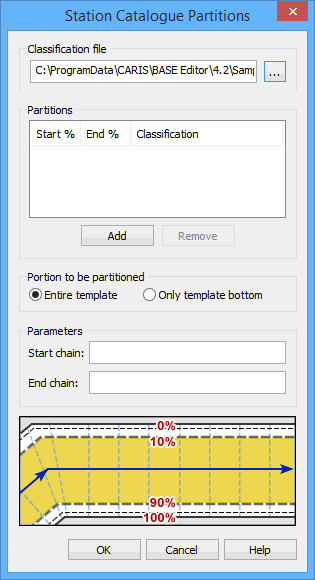
The Partitions option is used to partition the template into multiple rows (for example, to create traffic lanes in a waterway).
To define partition rules, perform the following steps:
1. Select the Partitions option.
2. Click Add.
The Station Catalogue Partitions dialog box is displayed.
First, you must select a Classification file. This file provides the classifications that can be assigned to the partitions using the Classifications drop-down list in the Partitions table.
3. Click the Classification file Browse button (...) and select a file.
Next you specify the size of each partition (expressed as a percentage of the full width of the template for the selected station catalogue).
4. To create a new partition, click Add.
5. If the width of the partition is not the desired width, select the End % value for the partition and type a new value.
6. To assign a classification to the partition, select an option from the Classification drop-down list.
Classification is a mandatory setting if shoal detection will be performed on the template. |
7. [Optional] To create additional partitions, repeat steps 4 through 6.
8. [Optional] To remove a partition, select the partition and click Remove.
The Portion to be partitioned field allows you to define whether the entire template will be partitioned or just the template bottom. If you did not want the partitioning to include the slopes of the template, you could also use a template that covers only the model bottom.
9. Select an option from the Portion to be partitioned field.
Next, you must define the range set of the alignment to which the rule will be applied. Each value in the Start chain and End chain fields must be measured from the start of the first alignment.
You can determine the chain of a profile by selecting the station it crosses. |
10. Type the Start chain value.
11. Type the End chain value.
12. To close the dialog box, click OK.
When you click OK to close the dialog box, the partitions are not visible yet. The partitions are displayed after you define the reaches in the template (see Reaches).