Menu | Create > Layer By > Attribute Value |
Tool |
|
Menu | Create > Layer By > Attribute Value |
Tool |
|
Create a layer based on attribute values. All features with a specified value for an attribute are displayed in a child layer. This can be useful if you want to identify all features in a specific area of a specific type and status. For example, if you want to identify all underwater rocks in the current view that are partly submerged.
Further filter the new layer using any of these commands:
• Create Layer by Feature Acronym
• Create Layer by Feature Object ID
• Create Layer by Feature Type
• Create Layer by Unique Feature Acronyms
Procedure
1. Make a layer active.
2. Select the Create Layer by Attribute Value command.
The Create by Attribute Value dialog box is displayed.
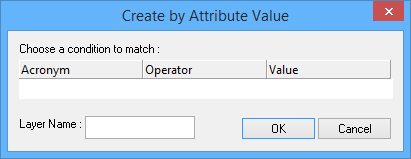
Option | Description |
Acronym | An attribute acronym. Select from the list. |
Operator | Available operators depend on the selected acronym. Select from the list. |
Value | The type of value depends on the selected acronym. Type values or select from a list as required. Depth and height values are displayed according to the precision settings in Tools > Options. |
Layer Name | A name for the layer. Define the name in one of the following ways: • Click in the box to generate a name based on the acronym • Type a specific name. |
3. Select an attribute acronym from the list.
The acronyms available will differ depending on the data being filtered. |
4. Select an operator.
5. Type a value or values.
6. Define a name.
7. Click OK.
A layer containing the features that meet the criteria is created.
