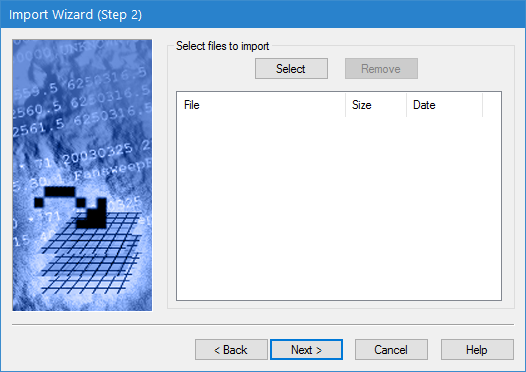
The second step of the Import Wizard is used to select the file(s) to be imported. You can import a single file or multiple files at once. The result will be a single coverage, regardless of the number of files imported. If importing multiple files, they must all have the same coordinate reference system and be in the selected format.
Interface
Step 2 of the Import Wizard is shown below.
Option | Description |
Select | Select the files to be imported. 1. Click Select to launch a standard Windows Open dialog box. 2. Navigate to and select the files to be imported. 3. Click Open. 4. Repeat if additional files are needed from other locations. |
Remove | Remove the currently selected file from the list of files to be imported. This might be done if a file was selected in error. 1. Select a file in the list. 2. Click Remove. |
file list | A list of all files selected for import. |
Procedure
1. Click Select.
A Windows Open dialog box is displayed.
2. Select the files to be imported.
The names of the selected files are listed in the window below the Select button.
3. Click Next.
If you are importing GSF, HOB, LAS, or RDP data, go to Import Wizard: Output Settings. For all other formats, go to Import Wizard: Input Settings.