Menu | Tools > TIN > Reset TIN |
Tool |
|
Pop-up | TIN Editor > Reset TIN (Layers window) |
Menu | Tools > TIN > Reset TIN |
Tool |
|
Pop-up | TIN Editor > Reset TIN (Layers window) |
The Reset TIN command reverts a TIN to its original state at the time of creation. This means all changes that have been applied to the TIN since it was created will be undone.
Related commands:
Procedure
1. Select the TIN Editor layer in the Layers window.
2. Select the Reset TIN command.
A message is displayed asking you to confirm that you want to undo all changes that have been applied to the TIN.
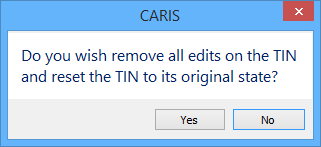
3. Click Yes to reset the TIN, or No to leave the TIN as is.
If you chose to reset the TIN, all changes will be undone and the display will be refreshed to show the changes.
