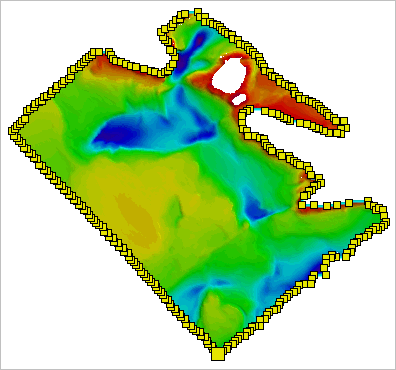
Menu | Tools > Bounding Polygon > Edit Selected Polygon Boundary |
Pop-up | Bounding Polygon > Edit Selected Polygon Boundary (Layers window) |
The editing functions explained in this section apply changes to individual vertices. To edit the entire polygon, see Editing an Entire Bounding Polygon.
Procedure: Enable Edit Mode
A bounding polygon must be in edit mode before any edits can be made.
1. Select the Bounding Polygon layer for the relevant coverage.
2. Select the polygon feature in the Display window.
3. Select the Edit Selected Bounding Polygon command.
The polygon is now in edit mode and ready to be edited. Note the change in the cursor’s appearance.
Procedure: Move a Vertex
1. With the Bounding Polygon layer selected and the polygon in edit mode, select a vertex in the line and keep the mouse button pressed.
2. Drag the cursor.
The vertex and the edge on either side of it will move with the cursor as you move the cursor around the screen.
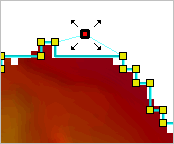
3. Release the mouse button when the vertex is in the correct location.
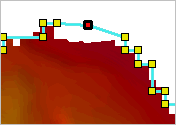
Procedure: Add a Vertex
1. With the Bounding Polygon layer selected and the polygon in edit mode, move the cursor to the location at which you want to add a vertex.
2. Press and hold the <Ctrl> key and click the polygon.
The cursor will change to indicate the operation.
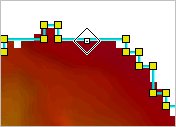
3. Click the polygon edge to place the vertex.
The new vertex is added to the polygon edge.
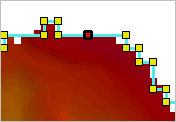
Procedure: Delete a Vertex
1. With the Bounding Polygon layer selected and the polygon in edit mode, select the vertex that you want to delete.
2. Right-click the vertex and select Edit Line > Delete.
The vertex is removed from the polygon.
Procedure: Disable Edit Mode
1. When finished editing vertices, use one of the following methods to disable edit mode and implement your changes.
• Select the Edit Selected Boundary Polygon command again.
• Right-click and select Edit Line > Redigitize.
If necessary, changes can be undone using the Undo command as long as you have not saved the changes. |