Menu | Tools > Coverages > Join Points |
The Join Points command is used to join multiple point clouds together to create a new point cloud. To run this command, you need at least two point clouds open.
When you join point clouds, the resulting point cloud will contain the points and their attributes from all input clouds.
Interface
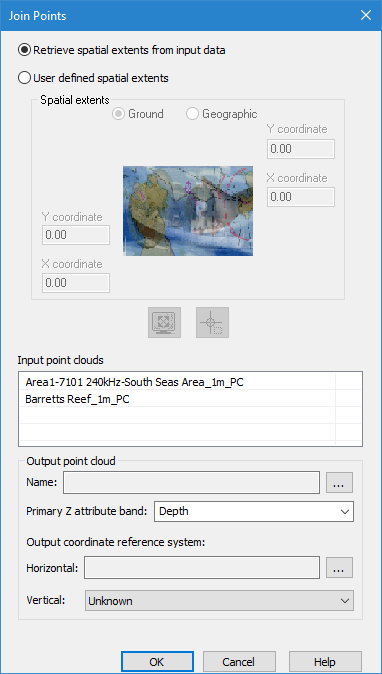
The Join Points command uses the following dialog box.
Option | Description |
Retrieve spatial extents from input data | Include the full extents of all input coverages in the output point cloud. |
User defined spatial extents | Enable the Spatial extents fields and manually define the extents of the data to include in the output point cloud. |
Ground/Geographic | The coordinate type with which to enter the extents for the output point cloud. 1. Click to select one of the options. |
X/Y coordinate | Manually define the extents for the output point cloud. The names of the fields will change based on the selected coordinate type. 1. Enter the lower-left and upper-right coordinates for the extents in the relevant fields. |
Current extents | Click to use the coordinates of the current view in the Display window to define the extents of the output point cloud. |
Select extents | Click to define the extents of the output surface by drawing a bounding box around the relevant data of the input surfaces in the Display window. |
Input point clouds | The coverages to be included as input surfaces. 1. Press and hold the <Ctrl> key and click the coverages to be included. |
Name | The name and location for the output point cloud. 1. Click the browse button (...) to define the name and location for the file. |
Primary Z attribute band | The name to assign to the primary Z attribute band (Depth, Height, etc.) in the resulting point cloud. This can be defined to reflect the nature of the data. You can either select an option from the drop-down list, or manually type a name in the field. The options in the list are populated based on the Z attribute bands present in the selected input point clouds. The Depth band is selected by default. If defining the name manually, only the following types of characters are supported: • Latin characters • numeric values • hyphens • underscores • spaces (although not at the beginning or end of the name) An error message will be displayed when you click OK if any other character types are present. |
Output coordinate reference system: Horizontal | The horizontal coordinate reference system (CRS) for the resulting point cloud. 1. Click the browse button (...) to launch the Select Coordinate Reference System dialog box and select a CRS. |
Output coordinate reference system: Vertical | The vertical CRS for the resulting point cloud. The vertical component is added to the metadata of the point cloud, but does not apply any vertical transformations. |
Procedure
1. Ensure you have multiple point clouds open.
2. Select a point cloud in the Layers window.
3. Select the Join Points command.
The Join Points dialog box is displayed
4. Select a method for defining the spatial extents, either manually or automatically using the extents of the input point clouds.
5. If defining extents manually, use one of the methods below to define the extents, otherwise continue to the next step.
• Select the coordinate type and enter coordinates in the coordinate fields.
• Click the Current Extents button.
• Click the Select Extents button and draw a bounding box around the source data to be included.
6. Select the Input point clouds.
7. Define a Name and location for the output point cloud.
8. Select or enter a name for the primary Z attribute band.
9. Select a Horizontal and Vertical CRS for the output.
10. Click OK.
The new point cloud is created and added to the Layers window.