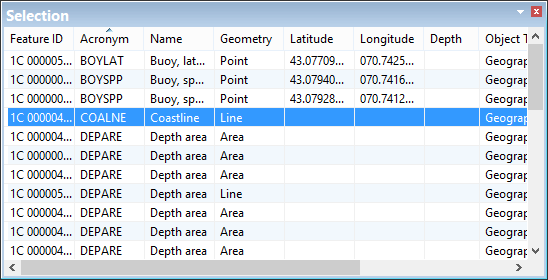
This window lists information about selected features.
A selection is a feature or group of features chosen with the mouse or with a menu command. One feature in the selection is always superselected (a selection within the selection).
The information in the Selection window depends on the type of features selected. For any fields that display coordinates or measurements, the format and units of these values are controlled by the Units settings in Tools > Options. For example, coordinates can be displayed as Geographic or Ground, length and area values can be projected or geodetic, and depth values can be in a number of units
You can change the column size by dragging the edge of the column heading to the left or right. Similarly, you can change the order of the columns by dragging an entire column heading to the left or right.
Right-clicking a column heading displays a pop-up menu with the following commands:
• List of column names: A column is visible if there is a check mark beside the name.
• More: Launch a dialog box to change the columns displayed and their order. See
• Reset Columns: Restore default column settings.
If you right-click on a row in the table, the following pop-up menu is displayed:
• Centre on Selection/Centre on Superselection
• Remove
• Remove Others from Selection
• Save All
Column Settings (More)
You can use the More command of the Selection window pop-up menu to set column display and width settings in the Column Settings dialog box.
1. Right-click a heading in the Selection window and select More from the pop-up menu.
The Column Settings dialog box is displayed.
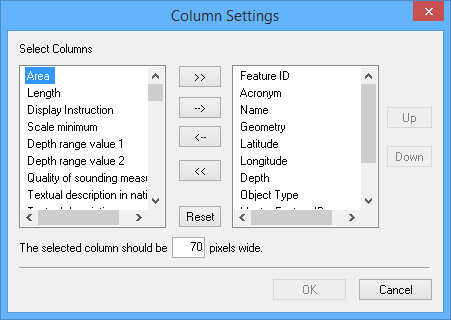
The list on the left contains all columns that are not already displayed. The list on the right contains all columns that are displayed.
2. Select a column in the left list and click the right-arrow to move it to the visible columns list.
3. [Optional] Select a column in the visible columns list and click the left‑arrow to move it to the available columns list and hide it from the Selection window.
The double right-arrow and the double left-arrow can be used to add or remove all columns from one list to the other, respectively. |
4. Select a column in the visible columns list and click Up or Down to change the columns order in the window.
5. Select a column in the visible columns list and type a new value in the The selected column should be box to define the columns width.
6. [Optional] Click Reset to restore all default column settings.
7. Click OK.