Menu | Tools > Coverages > New > Variable Resolution Surface |
Tool |
|
Menu | Tools > Coverages > New > Variable Resolution Surface |
Tool |
|
Source data can often have widely varying point densities over a given area due to depth changes, survey coverage, etc. When using fixed-resolution grids, it can be difficult to choose a single sampling resolution for the resulting raster model that maintains continuity over sparse areas, while preserving details where there is more data.
Variable resolution surfaces are coverages in which the resolution can vary in different regions, while maintaining continuity across the entire surface. The desired resolution in discrete areas is determined using selected algorithms, instead of by setting a fixed resolution based on subjective choice.
The first step to create a variable resolution surface is to determine how to subdivide the region, and what the resolution of each sub-region (or tile) should be. One option is to select a parameter to define the required resolution in each tile. An alternative is to analyze the source data on several criteria to determine the optimum resolution for each.
The process starts by dividing data into regular tiles, in this case using a quad-tree-structure, recursively dividing binary space partitions until each tile contains the appropriate number of data samples.
Once the data area is subdivided, a resolution for each tile must be determined using a resolution estimation method. The resulting quad-tree and computed resolution for each region are stored as the Resolution Map for the dataset. From this point, each tile is populated from the source data using standard gridding methods, such as: inverse distance weighted (IDW) mean, uncertainty-based mean, simple mean or selecting the minimum or maximum value.
There are three resolution estimation methods available:
• CARIS Density: Using this method, resolution values are estimated based on source point density. This method provides an adaptive, binning-based algorithm to run on arbitrary point sets containing multibeam or single beam data. It calculates tile sizes based on density rather than using a fixed size and avoids point clusters with a greater density in individual tiles, ensuring accurate overall resolution estimates. This method is useful when working with source data that contains point clusters and has large variations in depth ranges.
• Calder-Rice Density: Using this method, resolution values are estimated based on point density over an area (an assumed tile size). This method is designed and optimized for processing raw multibeam survey data. It is useful when working with data that contains smaller variations in depth ranges. This method tends to have faster processing times because it makes use of more predefined settings.
• Ranges: Using this method, resolution values are assigned based on a tile statistic (such as min., max., mean) and a lookup table of resolutions and values. The lookup table is in the format of a text file and contains a list of range values and the resolution to assign to each range. There are three range estimation methods available for defining the range value to assign to a tile:
• Mean: assigns a resolution based on the average of all depths in a tile.
• Mode: assigns a resolution based on the range that is most frequently found in a tile.
• Percentile: assigns a resolution based on the user-specified Range Percentile value and the point values in each tile, which are sorted deepest to shoalest. If the Range Percentile is set to 0, a resolution will be assigned based on the deepest point in the tile; if it is set to 100, a resolution will be assigned based on the shoalest point. For attributes other than elevation, such as uncertainty, 0 represents the highest value and 100 represents the lowest value.
A sample range/resolution file, Depth_ranges.txt, can be found in the ProgramData directory and is pictured below.
C:\ProgramData\CARIS\<application>\<version>\System

Using the sample file, tiles with a depth of 0 to 20 will be assigned the resolution of 1.0, tiles with a depth of 20.001 to 40 will be assigned a resolution of 2.0, and so on. This file can be copied and/or opened and edited in any text editor to create new files. This method is useful if you know what resolution you want at each depth.
The range values must be in decreasing order. The convention for these files is that elevations are entered in the positive-up z-axis convention, and all values are entered as a number of metres.
Once a VR has been created, the Surface properties in the Properties window can be used to adjust the display of the data. The Rendering and Level of Detail properties are particularly useful for VR surfaces.
• The Rendering property allows you to select the type of interpolation to use for rendering the surface. This affects both the processing time for creating the surface and the way colours are blended in the display. The options available are: Uniform, Bilinear and Triangulation. Uniform and Bilinear methods result in much quicker rendering than the Triangulation method. For VR surfaces, Bilinear is used by default.
• The Level of Detail property allows you to adjust the level of detail used to display the surface. Increasing this setting causes twice the amount of data to be rendered for each level, providing a finer display each time. Decreasing this value causes half the amount of data to be rendered, providing a coarser display. The default value is "Normal". Note that increasing the level of detail will also increase the time it takes for the coverage to be drawn in the view.
See Properties for more information on display settings.
Related commands:
• Export Variable Resolution to BAG
• Import Variable Resolution from BAG
Interface
Variable resolution surfaces can be created from track lines, raster surfaces, point clouds or TINs. Parameters for creating the surface are set in the New Variable Resolution Surface dialog box.
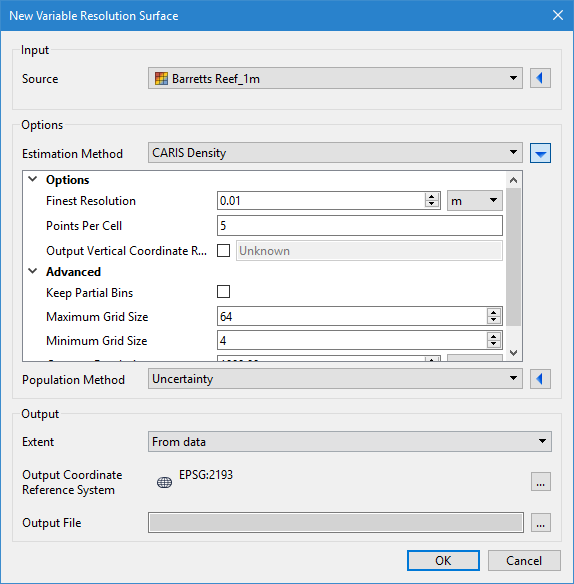
Each section of the dialog box can be collapsed or expanded using the blue arrow buttons at the right of the fields. By default, all sections are collapsed when the dialog box is launched, showing only the fields for each section that require user interaction, all other fields contain default values.
Option | Description |
Input | Set the input data for the new surface. |
Source | The input data for the process. If a coverage was selected before launching the dialog box, that coverage is selected by default. This can be changed to any raster surface or point cloud currently open in the application. |
Options | Select estimation and population methods for creating the surface and set related options. |
Estimation Method | Select a method and define the necessary options. Different options are available based on the selected estimation method. The estimation methods available are: • Density (Calder-Rice) to estimate resolution based on point density over coverage • Density (CARIS) to estimate resolution based on source point density • Ranges to assign a resolution based on a tile statistic |
Population method | Select a gridding method with which to populate the new surface and define the necessary options. Different options are available based on the selected population method. The population methods available are: • Inverse distance weighting: depth is given by the mean of all samples in the specified neighbourhood, weighted by a function of the inverse of the euclidean distance from the sample to the node. • CUBE: several hypotheses will be calculated based on depth and uncertainty, and the strongest hypothesis returned • Uncertainty: depth is given by the mean of all samples in the resolution bin, weighted by a function of distance and sample uncertainty. • Mean: Use a depth range containing the average value of all points within the tile. • Swath Angle: value set using beam angle and footprint radius that defines the maximum area to which a points will be applied • Selected Value - a single value for the node is used to populate each cell based on the selection criteria set in the options |
Output | Define the size of and projection for the surface, and location of the output file. |
Extent | The extent of the resulting surface. Only source data within these extents will be included in the output surface. By default, the extent of the surface will be set to the current zoomed view of the data (“From data” setting). The Custom option can be selected to activate the coordinates fields below and specify extents for the surface. • Click the Pick from screen button to define a section of the displayed data. This changes the shape of the cursor. Use the cursor to drag a box around an area. • Click the Use screen extents button to create a surface from the full extent of the data. The Upper and Lower X and Y coordinates for the area will be updated based on the selected command. |
Output Coordinate Reference System | The coordinate reference system of the resulting surface. 1. Click the browse button (...) to open the Select Coordinate Reference System dialog box and set the output system. See Change Coordinate Reference System for information on this tool. |
Output File | The name and location of the output surface file. |
Procedure
1. Select the New Variable Resolution Surface command.
2. In the dialog box, select an Input Source.
3. Select which type of data to include based on its status flag assigned.
4. Select a resolution Estimation Method and set its related options.
5. Select a Population method to populate the surface and set its related options.
6. Set the extent for the surface.
7. Select the Output Coordinate Reference System for the surface.
8. Define a name and location for the output file.
9. Click OK.
A new variable resolution surface is created in the specified location.

