Menu | Database > Import Selected Objects |
The Import Selected Objects command imports feature objects into a database object layer from either a feature layer or another database object layer. Any feature object can be imported, as long as the feature acronym is present in both the catalogue of the feature layer and the catalogue of the database.
Each imported object is added to the database under a database object layer specific to the feature acroyn. For example, if the selected objects are of type cvrage, the cvrage acronym must be present in the catalogue of the feature layer and the catalogue of the database. During import, the objects are automatically imported to the cvrage object layer in the database. If that layer is not present in the current database connection, a new filter layer must be added for the feature acronym or an existing filter layer must be altered to include the feature acronym of the newly imported database object.
Coverages can be associated to the database objects through the Set Coverage command, if desired. See Set Coverage for more information on this process.
No mapping can be specified during the import of objects; only attributes whose definitions match exactly will be copied to the new database objects. If the selected objects contain attributes that are not present in the catalogue being used by the database, those attributes will be skipped. When this happens, messages will be displayed in the Ouptut window identifying any skipped attributes.
Related commands:
Interface
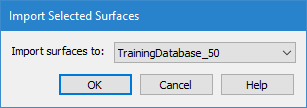
The Import Selected Objects command uses the following dialog box.
Option | Description |
Import surfaces to | The database containing the database object layer to use for the import. The list is populated with all open database connections. |
Procedure
1. Create and/or select one or more area features on a feature layer. See Digitize for information on creating feature objects.
2. Select the Import Selected Objects command.
The Import Selected Surfaces dialog box is displayed.
3. From the list, select the database to which you want to add the surface(s).
4. Click OK.
A database object is added to the database for each selected feature object.
5. Save the database layer.