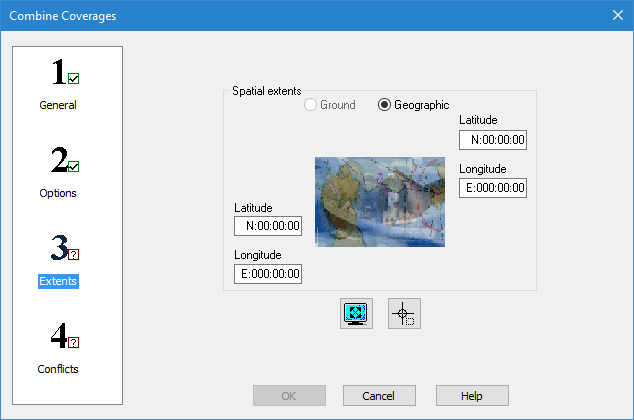
Step 3: Extents of the Combine Coverages wizard is generally used to limit the data included in the output coverage to a specified geographical region. Specifying larger extents can be used to expand a coverage, with no-data values added for padding. Note that if you will be using the AddToRasterCombine process in the CARIS Batch command line tool to add more datasets to the combined coverage later, it is important for the extents specified in the combine process to cover all of the area of the current data as well as the future area of interest.
If the extents specified are completely outside the area of use defined for the coordinate reference system (CRS) of the output coverage, the application displays an error message suggesting to select more appropriate extents or a different output CRS.
Interface
The following is the third step of the Combine Coverages wizard.
Options | Description |
Ground/Geographic | The coordinate type for the extents of the combined coverage. |
X/Y coordinates | Manually define the coordinates for the extents of the combined coverage. The field names change based on the selected coordinate type. 1. Enter the lower-left and upper-right coordinates of the extents in the relevant fields. |
Current extents | Click to use the coordinates of the current view in the Display window as the extents of the combined coverage. |
Select extents | Click to define the extents of the combined coverage by drawing a bounding box around the relevant data of the input coverages in the Display window. |
Procedure
1. Define the extents for the combined coverage using one of the methods available.
2. Select step 4 on the left to continue to Combine Coverages: Step 4 Conflicts.