Menu | Edit > Lines > Merge Matching |
Merge two or more lines into a single continuous line. Edges within the lines are not merged.
Lines must meet the following criteria:
• There are no gaps between the lines.
• All lines have same feature acronym and attribute values.
• Only two lines meet at a node.
Selected lines that meet the criteria will be merged. Selected lines that do not meet the criteria will be ignored.
The merged line will have:
• a new feature object ID
• the object class and attribute values from the original lines
• the edges from all original lines
Related commands:
Procedure
1. Select two or more lines.
2. Select the Merge Matching Lines command.
A message in the Output window tells you how many new lines were created out of how many original lines and how many selected features were not merged.
3. Click OK.
Example 1
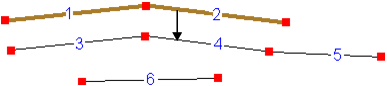
The following lines are selected:
• Lines 1 and 2 have the acronym CAUSWY and are positioned end to end with no gaps.
• Lines 3, 4, and 5 have the acronym CANALS and are positioned end to end with no gaps.
• Line 6 has the acronym CANALS but is separate from all other lines.
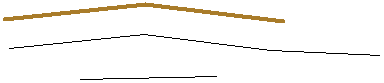
The result is:
• Lines 1 and 2 will be merged into a single CAUSWY line.
• Lines 3, 4, and 5 will be merged into a single CANALS line.
• Line 6 will be ignored.
Example 2
If more than two lines meet at a node, merging will stop even if all lines in the group have the same acronym and attributes.
For example:
• Lines 1 and 2 are positioned end to end with no gaps.
• Lines 3 and 4 are both positioned at the end node of line 2.

The result will be:
• Lines 1 and 2 will merge.
• Lines 3 and 4 will be ignored.
