Windows, toolbars, and menus can be moved and docked. Windows can also be combined with other windows.
The layout and display can be saved as a layout. The Layout commands apply to the location of interface components and not to the display of data. See Layouts List.
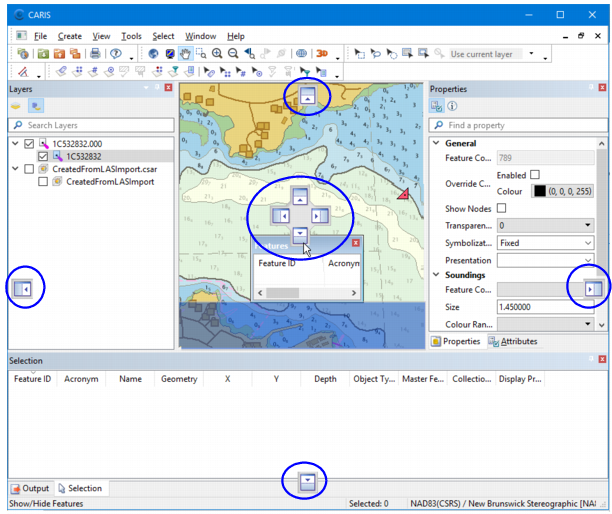
Window positioning is controlled through icons that are visible only while a window is being moved. These positioning icons indicate where a window can be placed.
As you move the window over a positioning icon, a blue outline area highlights where the window will be docked.
Icon | Description |
| Dock the window inside the Display window. Positions are: • top • right • bottom • left |
| Position the window in relation to other windows. • at the top of an existing window • to the right of an existing window • below an existing window • to the left of an existing window • as a tab within the existing window (centre icon) |
| Position the window as a separate window at the top of the main window, below the toolbars. |
| Position the window as a separate window at the right of the main window. |
| Position the window as a separate window at the bottom of the main window. |
| Position the window as a separate window at the left of the main window. |
Move a group of windows by grabbing the title bar. Move a single window by grabbing the tab.
1. Grab the title bar or the tab and drag the window.
The positioning icons are displayed.
2. Move the cursor over one of the icons.
A blue shaded area illustrates where the window will be docked.
3. Release the mouse button.
The window is docked in the new location.
To float a window:
1. Move the window.
2. Do one of the following:
• Release the mouse button without touching any positioning icons.
• Press <Ctrl>.
Manipulate menus
Menus can be docked and undocked, closed, and moved.
A docked menu bar has a handle at the left.
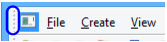
A floating menu bar has a title bar at the top.

To move a menu bar:
1. Click and hold the handle or title bar and drag the bar to a new location.
If you drag the menu bar close to the outside borders of the main window, it will be docked. If you drag it to the centre of the window, or if you press <Ctrl> while dragging, it will float. A preview of the position is visible as you drag.
Close a floating menu by clicking the X in the title bar. Reopen the menu using Reset Default Layout.
Dock and Float Toolbars
Toolbars can be dragged and dropped anywhere on the screen.
To float a toolbar:
1. Click and hold the handle on the left or at the top of the toolbar.
2. Drag the toolbar to a new location, away from the edges of the main window.
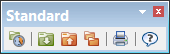
Note that a floating toolbar has a title bar.
To dock a toolbar:
1. Click the title bar of the toolbar.
2. Drag the toolbar to the top or the side of the main window.
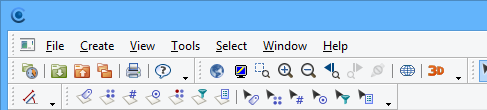
Show/Hide tools
Individual tools can be displayed or hidden. You can also modify the appearance and display of toolbars and tools.
1. Select the arrow at the end of the toolbar.
The Add or Remove Buttons menu is displayed.
2. Select the menu.
All the toolbars are listed.
3. Select one of the toolbars.
All the tools on that toolbar are listed.
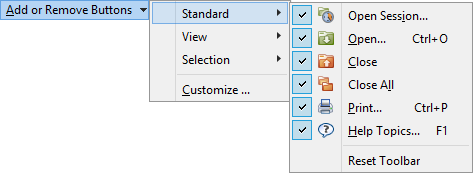
A check mark means that the tool is displayed.
4. Select the tools that you want displayed or hidden.
See also Reset Toolbar and Customize.


