Menu | Tools > Limits & Boundaries > Densification |
Tool |
|
Interpolate vertices at a given interval along line segments without altering the shape of the segments. The interval is restarted at the beginning of each line segment, and the original vertices and turning points of the line are preserved. LOS users who are viewing geodetic and loxodrome lines can use this command to add points that follow the curve.
Densification is done according to line-type. If a line or segment is a geodesic, it will be densified along the geodetic arc between its end points.
1. Select the line.
2. Choose the Densification command.
Menu | Tools > Limits & Boundaries > Densification |
Tool |
|
The Densification dialog box is displayed.
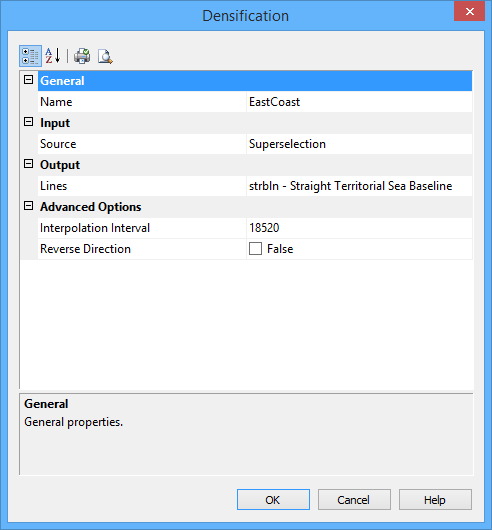
The following table lists the available options.
Group | Option | Description |
General | Name | The name of the output layer. Select from the list. |
Input | Source | The layer containing the line data to be used. If features are selected, you can also choose from Selection and Superselection. Select from the list. |
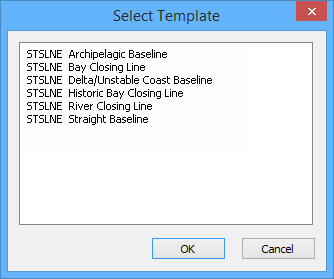
Output | Lines | The feature acronym and attributes of the output line. Type an acronym directly or select an option from the list. The list contains the following options: • A list of recent objects (if any): Select this to reuse a previous object. • Template: Select this to define the feature acronym and attributes using a predefined template. This will launch the Select Template dialog box, from which you select a template, if any are available. |
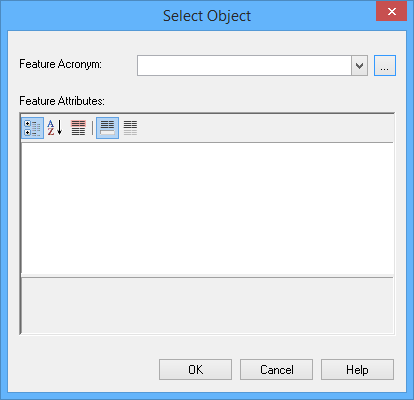
Output | Lines (cont.) | • Objects: Select this to launch the Select Object dialog box from which you can manually select an acronym and define the attribute values. |
Advanced Options | Interpolation Interval | The interval between points on the output line. Type a value. The default is 10 nautical miles, but the value will display using the Distance setting in the Display Units Options tab. The last value set is remembered. |
Reverse Direction | The line is densified based on the starting point and the direction in which it was digitized. Because the interval between added points restarts for each line segment, the location of the new points depends on the direction of the line. • False: The starting point of the line is not changed. • True: The starting point of the line is changed and the direction reversed. |
3. Set any required options.
4. Click OK.