Menu | Model > New Feature > Surface > By Digitizing (Vertical) |
Tool |
|
This tool is used to select positions in the Display window to create points for a vertical surface.
A vertical surface must be made up of three or four x,y,z points, at two x,y locations.
1. Open a reference model.
Menu | Model > New Feature > Surface > By Digitizing (Vertical) |
Tool |
|
2. Select the (New Feature, Surface) By Digitizing (Vertical) command.
Alternatively, it is possible to use the Create New Vertical Surface command in the right click menu of the Model window.
The pointer changes to indicate surface digitizing is enabled.
3. In the Display window, click the position for each point you want to include in the vertical surface(s), where each click after the first will create a new vertical surface between it and the preceding point.
Use snapping to create the vertical surface using existing point features. See Snapping for more information. |
Thin lines are displayed between the points.
4. [Optional] Press <Backspace> any time before saving to remove the last surface point selected.
5. Press <End> to complete the surface(s).
The Vertical Surface dialog box may be displayed.
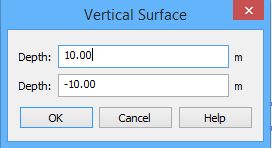
If digitizing a vertical surface along two existing complete reference model surfaces, the depths and orientation for the vertical surface are automatically determined from the existing surfaces. If two distinct depths cannot be found, the vertical surface dialog is displayed, with edit fields for the two depth values. If one distinct depth can be found, the vertical surface dialog is automatically populated with that depth.
6. Enter the Depth values.
7. Click OK.
The new vertical surface(s) are created and listed in the Model window. The surface name is displayed in the Identification tab of the Model Feature window. 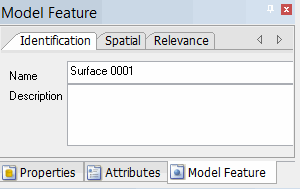
Using tabs in the Model Feature window, you can change the settings for a surface. |
The Spatial tab displays the direction of the Plane normal, based on the settings in Tools > Options. The Flip normal button rotates the plane 180 degrees. The Set z values button displays the same Vertical Surface dialog, optionally displayed on creation, so that one or both Depth values for a vertical surface point can be adjusted.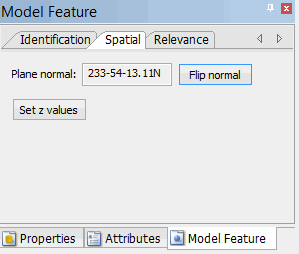
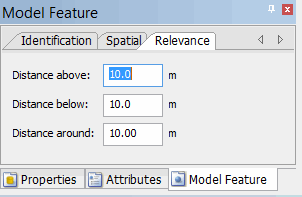
The relevance distances for above, below, and around the reference model plane can be input using the Relevance tab. For more information on Relevance distances see Relevance Distances.