The Classification Settings dialog box is displayed.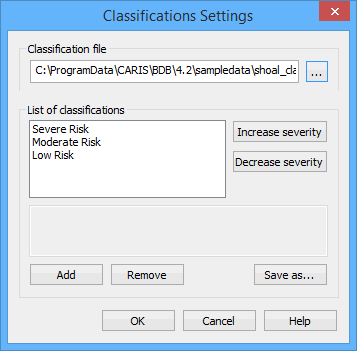
This tool generates an ordered list of classifications which can be assigned to the partitions of a template. This list is saved to a classification file, which is an XML format file. A classification file can be used to describe the associations for, or assessed condition of, a partition (for example, a shoal). A sample file for shoal classifications can be found at:
C:\ProgramData\CARIS\BASE Editor\<version>\SampleData\
shoal_classifications.xml
To define classification settings:
1. Select the Classification Settings command.
Menu | Model > Classification Settings |
The Classification Settings dialog box is displayed.
In this dialog box you can create a new classification file or edit an existing one. To begin, you must open an XML file.
2. Click the Classification file Browse button (...).
3. Navigate to and open an appropriate file.
If the file contains existing classifications, they will be displayed in the List of classifications box.
4. [Optional] To create a new classification file, click Save as and assign a new name and/or location to the file.
Classifications can be defined in several ways:
• new classifications can be added
• for any existing classification, the name, description, and severity can be changed
• an existing classification can be removed
5. Perform any of the following procedures as needed.
Add a classification
1. Click Add.
A new "empty" classification is displayed in the list.
2. Select the empty classification.
3. Click the classification name and type a new name.
4. Press <Enter>.
5. Select the description box and type a description.
The classification is created.
Change the name
1. Select a classification from the list.
2. Click on the selected name.
3. Type a new name.
4. To confirm the changes, press <Enter>.
The classification is renamed.
Change the description
1. Select a classification from the list.
The description for the selected classification is displayed in the description box.
2. Click on the description.
3. Modify the description as needed.
4. Click outside of the description box (for example, on the left-hand side of the title bar).
The description for the classification is updated.
Change the severity
1. Select a classification from the list.
2. Choose one of the following options:
• Click Increase severity to make the classification more severe.
• Click Decrease severity to make the classification less severe.
The severity of the selected classification is changed.
Remove a classification
1. Select a classification from the list.
2. Click Remove.
The selected classification is removed.
When you have finished modifying classifications, you need to save the changes.
3. [Optional] Click Save as to save the changes to a new file, if not already done.
4. Click OK to save the changes to the currently selected file and close the dialog box.
The classifications are now ready for use in the reference model.