The Import Selected Objects command imports area features from a feature layer into a database. The features will be added to the database as surfac objects without bathymetry. Bathymetry can be added to the surfaces at a later time. See Replace Bathymetry for more information.
The following conditions must be met to add surfaces using this method:
• The features must be of the geometry type Area.
• The feature acronym must be surfac.
To import surfac area features:
1. Create or select one or more surfac features on a feature layer. See the Digitizing Features topic in the CARIS Application Guide for information on creating features.
2. Select the Import Selected Objects command.
Menu | Database > Import Selected Objects |
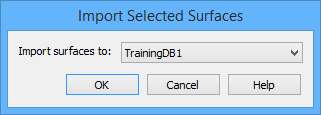
The Import Selected Surfaces dialog box is displayed.
3. From the list, select the database to which you want to add the surface(s).
4. Click OK.
A surfac object is added to the database for each surfac feature object selected. A message stating the start and end times for the process is displayed in the Output window.
5. Save the database layer.
If an object being imported is missing any mandatory attribute values, it will be skipped by the import process and not added to the database. |
Bathymetry can be added to these surfac objects as needed using the Replace Bathymetry command. See Replace Bathymetry for more information. If you try to open a database surface that does not contain any bathymetry, an error message is displayed.