Menu | Create > New Feature > Line/Area |
Tool |
|
Pop-up | Line Digitizer > Vectorize from Raster
Area Digitizer > Vectorize from Raster |
Follow lines from an image to create a vector line or area.
This command converts a row of raster pixels into a vector line. It detects the pixel that you click and follows adjoining pixels of the same colour. If the raster line is wider than a single pixel, the vector line is traced along the centre.
Procedure
1. Open a raster image.
2. Make an editable layer active.
The new feature will be added to this layer.
3. Select a create line or area command.
Menu | Create > New Feature > Line/Area |
Tool |
|
4. Select the raster layer from the list in the Select toolbar.

5. Select the Vectorize from Raster command.
6. Click at the start of the line or area in the raster image.
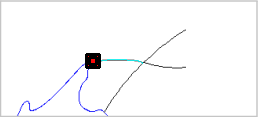
A line will follow the adjoining pixels until a decision point is reached. This could be a gap in the raster line or an intersection
7. Click at the next portion of the raster line.
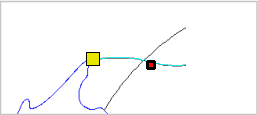
8. Continue until the entire line is vectorized.
Pop-up | Line Digitizer > End Line Line Digitizer > Close Line |
Key | <End> <Home> |
Pop-up | Area Digitizer > Close Area |
Key | <End> |
9. End or close the line or close the area.
The new feature is created.