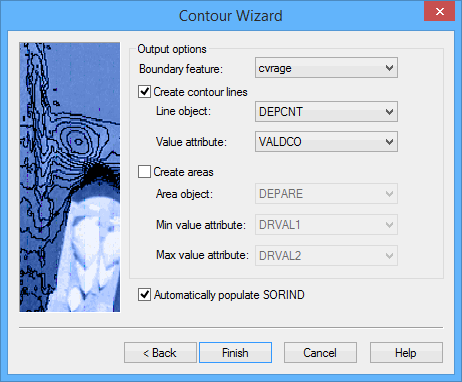
The Contour Wizard - Output Options step is displayed.
In this dialog box, you define the object and attribute acronyms that will be used to create the features resulting from this procedure.
A by-product of generating contours is a bounding polygon feature, which represents the inside and outside extent of the data used to derive the contour lines. By default, this feature object is created using the cvrage object acronym (Coverage Area); however, the possible acronyms are controlled by the catalogue of the feature layer being used to create the contours. If the cvrage acronym does not exist in the catalogue of the feature layer being used, the first acronym in the list will be selected instead. All open contours are connected to the boundary by connected nodes.
For the bMIO format, a metadata object such as M_QUAL can be used for the boundary object. |
1. Select an object acronym for the Boundary feature from the list.
You have the option of outputting both contour lines and areas, or just one of the two.
2. Select one of the following:
• To create contour lines, select the Create contour lines option and go to step 3; or,
• To create areas, select the Create areas option and go to step 5.
Create contour lines
If using the Bathy DataBASE1 catalogue, the Line object field is set to DEPCNT by default. The default acronym then selected for Value attribute when using DEPCNT is VALDCO.
3. Select a Line object option. This is the object acronym that will be used to create the contours.
4. Select a Value attribute option. This is the attribute acronym that will be used to assign values to the contours.
If you wish to create areas as well as the contour lines, select the Create areas option and continue with the next step; otherwise, go to step 8.
Create areas
If using the Bathy DataBASE catalogue, the Area object is set to DEPARE by default. The default settings for Min value and Max value when using DEPARE are DRVAL1 and DRVAL2, respectively.
5. Select an Area object option. This is the object acronym that will be used to create the areas.
6. Select a Min value attribute option. This is the attribute acronym that will be used to assign minimum values for the areas.
7. Select a Max value attribute option. This is the attribute acronym that will be used to assign maximum values for the areas.
8. [Optional] Select Automatically populate SORIND to automatically populate the source attribute value for the contours and areas.
9. Click Finish to create the contour lines and/or areas.
The boundary object, and contour line and area features are created.
If the number of contours to be created exceeds the amount of memory available to complete the procedure, an error message will be displayed. You may be required to restart the application to clear your virtual memory if this happens. |
10. To view the new features, select the Refresh command.
Menu | View > Refresh |
Tool |
|
Key | <F5> |
The feature layer can be written to a HOB file using the
(File) Save command to save the contour and area features for future use, if desired.
1 This term is a trademark of CARIS (Universal Systems Ltd.), Reg. USPTO
