Menu | Model > New Feature > Alignment > By Digitizing |
Tool |
|
Pop-up | (Model window) Create New Alignment |
Digitize points for a new alignment.
1. Select the (New Feature, Alignment) By Digitizing command.
Menu | Model > New Feature > Alignment > By Digitizing |
Tool |
|
Pop-up | (Model window) Create New Alignment |
The Display window is in digitizing mode.
2. Position the mouse pointer and click the mouse button to add the first point for the alignment.
Use snapping to create the alignment using existing point features. See Snapping for more information. |
Straight alignments
3. Position the mouse pointer in the location of the next point and click the mouse button again.
You now have a straight section of alignment. You can choose to stop digitizing now and complete the alignment, or you can continue to add points to create a compound alignment. The additional alignment sections can be straight or curved.
• To create additional straight alignments for a compound alignment, repeat Step 3.
• To create a curved alignment, continue with the next step.
• To stop digitizing and complete the alignment, go to Step 9.
Curved alignments
There are two types of curved alignments:
• Curved (CW): an alignment created in a clockwise direction
• Curved (CCW): an alignment created in a counter-clockwise direction
Pop-up | Edit Line > Curved (CW)/Curved (CCW) |
4. [Optional] In the Display window, right-click and, from the pop-up menu, select a curved alignment command.
Next, create the centre (radius) point for the arc. The previous two points created will be used as the end points for the curved alignment.
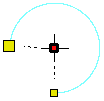
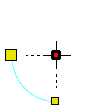
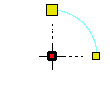
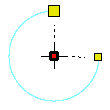
The following table shows the curved alignment types available based on the direction of the alignment and the position of the centre point.
Centre point... | Clockwise (CW) | Counter-clockwise (CCW) |
Above end points |
|
|
Below end points |
|
|
5. [Optional] Move the pointer to a position above or below the end points.
6. [Optional] Click and hold the mouse button.
7. [Optional] Drag the radius point to a position closer to or further away from the two alignment line points to adjust the shape of the curve.
8. [Optional] Repeat steps 4 to 7 to add any number of additional sections to the alignment.
To cancel creating an alignment and end the digitizing mode, press the <Esc> key twice. |
The curve for the alignment is displayed between the alignment line end points.
Complete the alignment
9. To finish creating the alignment, right-click and select End from the pop-up menu.
Pop-up | Edit Line > End |
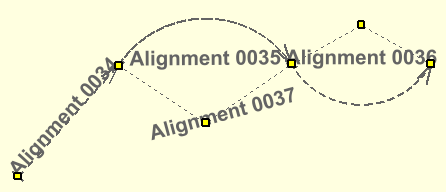
A new alignment is created. The example belows depicts a compound alignment comprised of one straight alignment and two curved alignments for a total of four alignments.