Menu | Model > New Feature > Point > By Digitizing |
Tool |
|
Pop-up | Create New Point (Model window) |
Manually digitize a new point in the reference model. When digitizing features manually, it is recommended that you have at least one background map open and that you are zoomed in sufficiently to effectively use it as a reference.
1. Select the (New Feature, Point) By Digitizing command.
Menu | Model > New Feature > Point > By Digitizing |
Tool |
|
Pop-up | Create New Point (Model window) |
In the Display window the pointer changes to indicate that the application is in digitize point feature mode.
2. Move the point to the appropriate position in the Display window.
3. Click and hold the mouse button and move the point symbol to where the new point is to be inserted. Snapping can be used to more accurately place the pointer. See Snapping for more information.
If necessary, the Zoom and Pan commands can be used to adjust the display while in digitize mode. Refer to the View Menu chapter of the CARIS BASE Editor Reference Guide for information on these commands. |
4. Release the mouse button.
The new point is shown in the Display window. You can enter a description for this point or define a reference system for it if desired. See Modify a Point for more information.
5. [Optional] To create another point feature, for example if you needed to create a different type of reference model feature, press Ctrl+F and repeat steps 2 through 4.
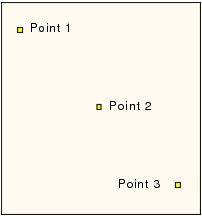
The points are shown in the Display window area.