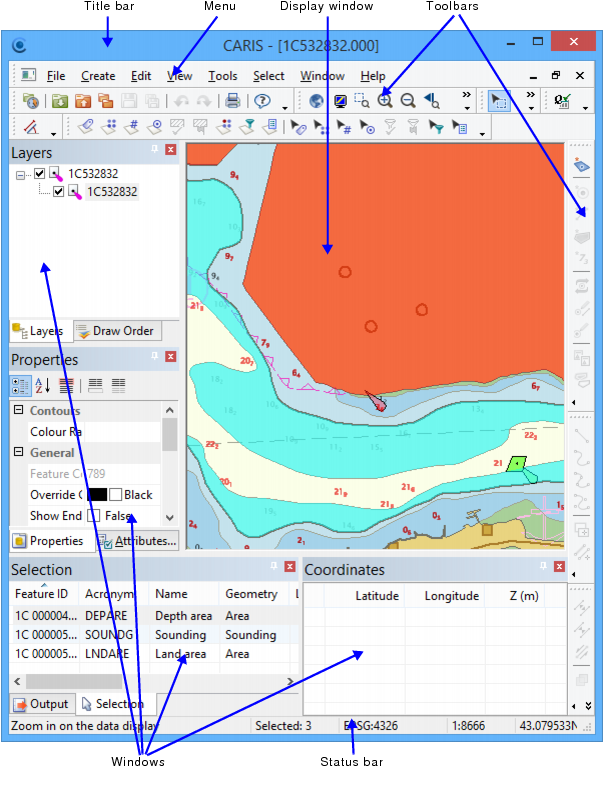
The main window shows a set of commands and windows available in Teledyne CARIS applications.
Component | Description |
Title Bar | The title bar displays the name of the application and the currently open session, plus the window control buttons: minimize, restore, and close. |
Menu | The menu bar provides access to commands. In this manual, a menu command looks like this: Hover the mouse pointer over a menu item to see a description in the status bar. |
Toolbars | Toolbars provide shortcuts to many of the menu commands. Hover the mouse pointer over a tool to see a tooltip and a description in the status bar. |
Display Window | The Display window contains the open map or chart. You can have one 3D display window and multiple 2D display windows open at the same time, if desired. The Display window is the only window that cannot be moved or docked. |
Windows | Properties and data are displayed in windows inside the main window. All windows can be docked anywhere within the main window, including tabbed with other windows, or left floating independently of the main window. See Windows for details on moving and positioning windows. |
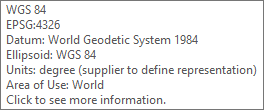
Status bar | The status bar displays: • information about the tool or menu item under the mouse pointer • information about the operation currently taking place, if any • the number of selected features • the projection of the view • the scale of the active 2D view or the elevation of the active 3D view • the coordinates of the cursor position To show or hide the status bar, select View > Status Bar. If the cursor is positioned over the projection section, a tooltip provides more information on the projection.
|