Menu | File > Export > To bMIO |
Export contours, depth areas and other features into a bathymetric Marine Information Overlay (bMIO). The bMIO product allows dense bathymetric data to be displayed in conjunction with an ENC. A marine overlay provides additional information about important non-navigation information in a standards based format.
To perform the export, you must define properties for the data. These properties are used to populate a header in the exported file, as well as provide a name for the exported file. The Producing Agency, Usage Range From/To and Individual Cell Code properties are used to generate the file name.
The resulting file is in ENC (.000) format. This file contains information for the exported objects, as well as a header with overlay information for the entire file.
Interface
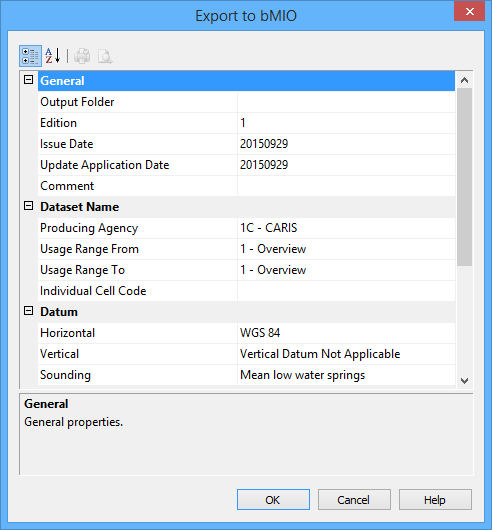
The Export to bMIO command uses the following dialog box. As you select each property, a brief description is displayed in the Description Panel at the bottom of the dialog box.
| Option | Description |
General | Output folder | The folder in which the exported file will be created. 1. Click browse (...) and select a folder. |
Edition | The edition number of the bMIO. By default, this value is 1, however, if it is changed, it will be remembered by the application the next time the dialog box is displayed. | |
Issue Date | The date the file was created. The current date is selected by default, but a different date can be selected from the calendar tool. | |
Update Application Date | The indicator date for which updates to expect in the data being exported. All updates dated on or before this date must have been applied. This date is only used for base cell files (that is, for new data sets, re-issue and new edition), not update cell files. | |
Comment | Optionally used to provide additional information that is relevant to the data. | |
Dataset Name | Producing Agency | The producing agency responsible for creating the file. The agency code is used in the file name for the resulting file. |
Usage Range From/To | The usage scale range to use to display the data. The From property defines the beginning range setting and To defines the ending range setting. The From range is specified in the file name of the resulting file using the number of the selected range, B4 = 4 - Approach. | |
Individual Cell Code | The unique five-character code for the product. | |
Datum | Horizontal | The horizontal coordinate system of the data. |
Vertical | The vertical datum setting for the data. | |
Sounding | The sounding datum setting for the data. | |
Units | Depth | The unit of measure to use for depth values in the exported data. This property is read-only and must remain set as metres. |
Height | The unit of measure to use for height values in the exported data. This property is read-only and must remain set as metres. | |
Accuracy | The unit of measure to use for Positional Accuracy values. This property is read-only and must remain set as metres. | |
Lexical Level | English | The lexical level (character set) to use for product attribute values. Most attributes must be defined in English. The options are: • Lexical Level 0: This character set contains English-language letters, numbers, and special characters, such as the dollar sign, spaces and brackets. • Lexical Level 1: Lexical Level 0 plus extended characters, including French accents and operands (for example, divide and multiply). |
National | The lexical level to use for national language attribute values, which may contain equivalent names in other languages. The same lexical level options are available as with English, but also a Lexical Level 2 option: Lexical Level 2: Unicode text (two-byte characters) which supports languages that cannot be supported by Lexical Level 1, such as Chinese or Russian. | |
Other | Compilation Scale | The scale at which the data is to be exported. |
Sounding Rounding | The sounding rounding rule to use to define the precision of sounding values. See the CARIS Support Files Guide for brief descriptions of the available sounding rounding rules. |
Procedure
1. Open the map containing the features you want to export.
2. Select the layer of the map from which you want the features selected.
3. Select the Export To bMIO command.
4. Enter or select a value for each of the fields.
5. Click OK to perform the export.