Menu | Tools > Features > Create Soundings > Superselection/Selection |
The Create Soundings command is used to create soundings from a selection of existing surface data.
Related commands:
• Create Soundings Inside Contours
Interface
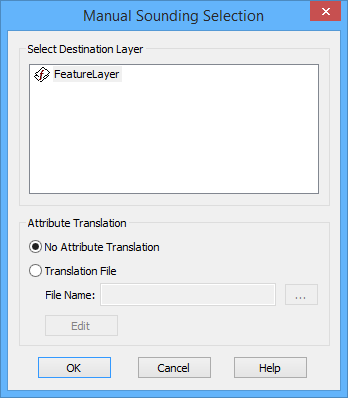
The Create Soundings command uses the following dialog box.
Option | Description |
Select Destination Layer | The feature layer in which to create the new soundings. All feature layers currently open in the application are listed in the Destination Layer field. New soundings will be created in the selected layer. The first layer in the list is selected by default. |
Attribute Translation | The attributes with which to create the soundings. They can be created using the existing attributes of the source data (No Attribute Translation) or by mapping the attributes to S‑57 attributes using a translation file (Translation File). The translation file has a BSST file extension and is in XML format. |
File Name | The BSST translation file to use for attribute mapping. This field is only enabled if the Translation File option is selected. An existing file can be used or a new file can be created. Click the browse button (...) to open or create a file. • If using an existing file, navigate to the file and select Open. • If creating a new file, navigate to the location in which to store the file, enter a name for the file in the File name field and click Open. |
Edit | Launch the Edit Translation File tool to edit the settings of the selected translation file. If a new file is being used, this tool is used to define the settings of the new file. See Edit Translation File for more details on this tool. |
Procedure
1. Select the parent layer of a BASE Surface or Point Cloud in the Layers window.
2. Select the desired points in the Display window.
3. Select the appropriate Create Soundings command, depending on the number of points selected.
The Manual Sounding Selection dialog box is displayed.
4. In the Select Destination Layer field, select the feature layer in which you want to create the new soundings.
5. Select an Attribute Translation option.
6. If using a translation file, click the browse button (...) to select an existing translation file or to specify a name for a new translation file.
7. [Optional] Click Edit to launch the Edit Translation File tool to define or edit the settings of the translation. Click OK to return to the Manual Sounding Selection dialog box.
8. Click OK to create the new soundings.
New soundings are created on the destination layer.