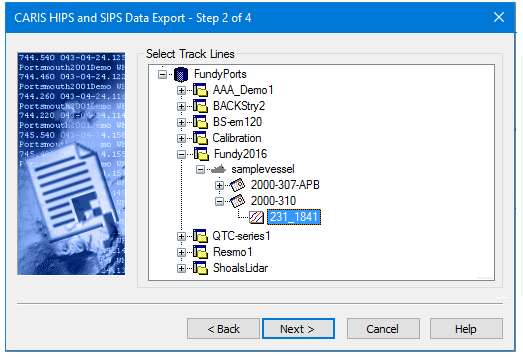
Select the data to be exported, either by selecting a track line folder from the data tree, or by browsing to a file location.
.
Selected lines can also be exported to ASCII, DXF, WKT and GML. See Export Selection to ASCII. |
Procedure: Select Track Lines
1. Expand the data tree to select the folder containing the track lines to export.
2. To select more than one line folder, hold down the <Ctrl> key and select additional folders.
3. Click Next to go to Export Step 3: Set Export Options.
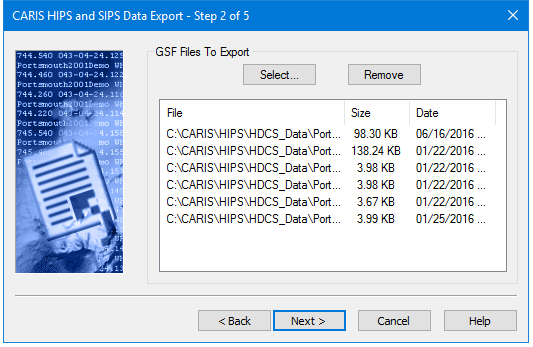
Procedure: Select GSF files
1. Click Select and in the Open dialog box, browse to the location of the files to export.
2. Select the file or files to include in the export.
3. Hold the <Ctrl> key while selecting to add more than one file to the list.
4. Click Open.
5. Click Next to set GSF to HOB Export Options options.
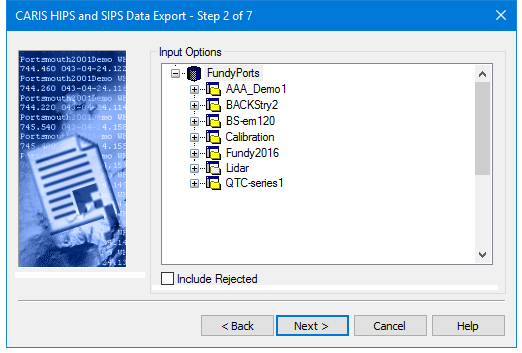
Procedure: Set Input Options
1. Expand the data tree to select the folder containing the track lines to export.
2. Select the Include Rejected check box to include rejected data in the output file.
3. Click Next.