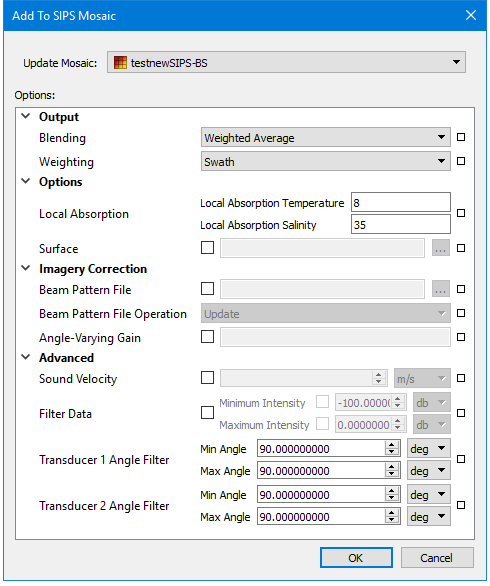
Add a line or lines to an existing mosaic.
The Add to Mosaic dialog box displays the options and settings that were used to create the original mosaic. By default, the Source field is set to Selection, which will add only the selected lines.
If you add a line that is already part of the mosaic, and data for this line has been updated since the mosaic was created, the line is effectively removed and then replaced in the mosaic with its updated values. |
Related commands:
Interface
Use the Add to Mosaic dialog box to add to an existing mosaic.
Procedure
To add line data to an existing mosaic:
1. Open HIPS data.
2. Open the mosaic.
3. Select a line or lines to be added to the mosaic.
4. Select the Add to Mosaic command.
5. Select the Input Type: SIPS Backscatter, GeoCoder or SIPS Side scan.
6. If you are adding to a side scan mosaic, select the Channel to be added to the mosaic: Port, Starboard or both channels.
7. Click OK to add the lines with the same option settings used to produce the original mosaic.
Otherwise, adjust other options and click OK to add the lines with different settings.
The mosaic will be regenerated to include the selected line or lines.