Menu | Tools > HIPS Data Filters > Surface Polygon |
This filter uses an input surface and a scaled standard deviation or uncertainty threshold to reject data that fall outside the specified threshold. You can also filter by a direct threshold amount. It can also filter by accepting or rejecting soundings that fall inside or outside of a polygon.
Interface
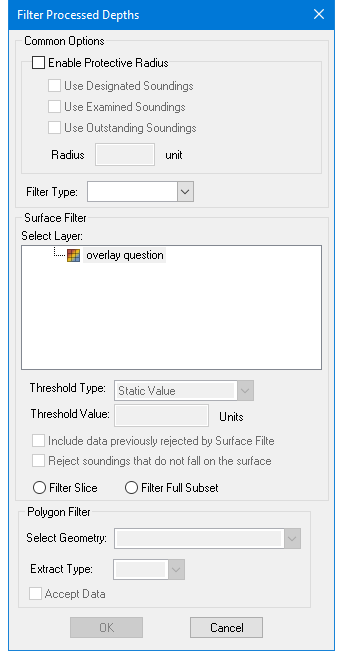
Settings are made in the Filter Processed Depths dialog box.
Option | Description |
Common Options | |
Enable Protective Radius | 1. Select the check box to turn on a protective radius around critical soundings. Neighbouring soundings inside the protected area will not be filtered. 2. Select the type of critical soundings to be protected: one or all of Designated, Examined or Outstanding. |
Radius | Set the size of the radius |
Filter Type | • Set Surface to filter the area of the selected surface • Set Polygon to filter the area within the polygon boundary. |
Surface Filter | |
Select Layer | Select the surface layer to be filtered. |
Threshold Type | Set the type of surface used as input: Static Value (a specific number) or Standard Deviation. |
Threshold Value | Set the value to reject all soundings that fall outside the specified threshold. |
Include data previously rejected by Surface Filter | Select check box to include previously rejected data. |
Reject soundings that do not fall on the surface | Select Check box to reject soundings not on the selected surface. |
Polygon Filter | |
Select geometry | Set type to Inclusive to filter all data inside the polygon, including data that touches the polygon. Set to Exclusive to filter all data outside the polygon. |
Accept Data | By default this is disabled, and all filtered data will be rejected. Select check box to set data to Accepted. |
Procedure
1. Open a surface.
2. Create a feature layer that will contain the filtered data.
3. Select the Surface Polygon command.
4. Select protective radius and other options.
5. Click OK.