Menu | Process > Report > Line QC |
Statistical variance between the check-line soundings and the attribute values are shown in a table in the Reports window which appears after the Line QC report process is run. See Quality Control Statistics
Interface
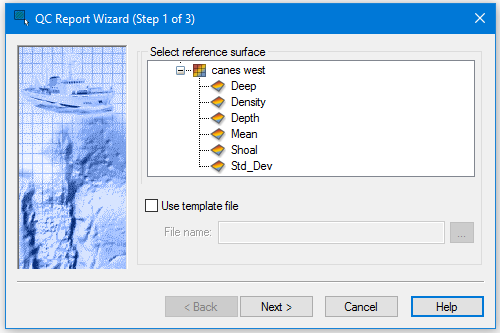
Use the QC Report Wizard (Step 1) dialog box to select the surface to be examined.
By selecting Use template file you can create a report template for future use, or select an existing template for the current report.
Template files in XML format are saved to the Templates folder. A template is created using the settings in the wizard used to create the output file. If choose to use an existing template file, the settings saved in that file are applied to the options in the following step of the wizard.
Procedure
1. Open a surface
2. Select a line that contributes to the surface, or select a Project, Vessel, or Day folder in the Project window.
3. Select the Line QC command.
4. In the step 1 dialog box, select a surface attribute from the Select Reference Surface list.
5. Select the Use template file check box to create a new, or to open an existing, template file.
6. Click Browse to set a location and name for the new file or to select an existing file.
7. Click Next.