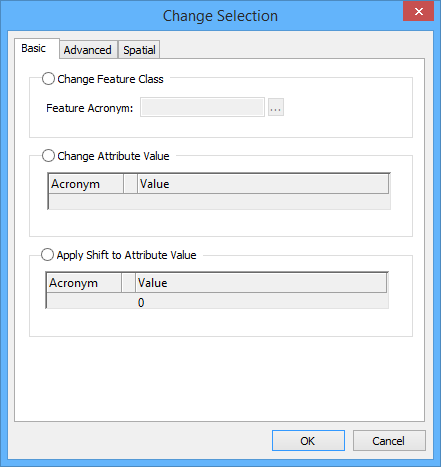
Option | Description |
Change Feature Class | Assign a new feature acronym. This will not change the geometry or feature type. For example, lines cannot be converted to areas nor areas to lines. 1. Enable Change Feature Class. 2. Type an acronym in the box or click browse (...) to display the Select Object Acronym dialog box. |
Change Attribute Value | Assign or change an attribute value. 1. Enable Change Attribute Value. 2. Select an attribute in the Acronym column. 3. Click browse (...) or the down arrow in the Value column. The appropriate list or dialog box is displayed. See Attributes for details. |
Apply Shift to Attribute Value | Change a numeric attribute by adding or subtracting a value. 1. Enable Apply Shift to Attribute Value. 2. Select an attribute from the Acronym column. Only floating point and integer attributes are displayed. 3. Type a value. This can be a positive or negative value. A positive value is added to the existing value. A negative value is subtracted from the existing value. If a selected feature has no value assigned to the attribute, no change is made. |