Menu | Tools > Subset Editor > Surface Filter |
Tool |
Subset Editor toolbar |
Menu | Tools > Subset Editor > Surface Filter |
Tool |
Subset Editor toolbar |
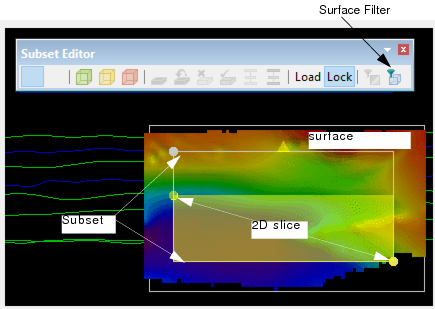
You can load any type of surface and apply filtering to the full subset or to the part of the surface within the subset 2D slice.
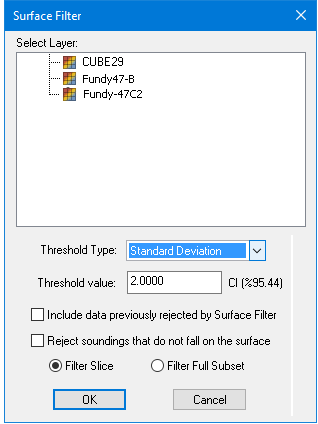
Options for the Surface Filter are in Surface Filter dialog box:
Option | Description |
Threshold Type | 1. Select the type from the drop-down list. |
Threshold value. | 2. Set the desired Threshold value. Static values are entered in the units set in Tools > Options > Display > Units > Vertical units, e.g., metres. For standard deviation or uncertainty thresholds, when you enter a threshold value, the confidence interval will be displayed next to the field. |
3. Select the Include data previously rejected ... check box to include rejected data when running the filter. | |
4. Select the Reject soundings that do not fall on the surface check box to reject soundings that are offset from the surface | |
5. Select Filter Slice to filter only the soundings within the subset slice, or 6. Select Filter Full Subset to filter all the soundings within the subset bounding box. |
Procedure
1. Open a surface.
2. Open Subset Editor and define a subset over the surface. (See Open Subset Editor.)
3. Load the subset.
4. Select the Reference Surface layer in the Subset Control window.
5. Select the surface Depth layer from the Select Surface file tree in the Properties.
6. Click Load.
When the surface is loaded, the Surface Filter button on the Subset Editor toolbar is activated.
7. Select the Surface Filter command.
8. In the Surface Filter dialog box, select the layer to be filtered.
9. Set options.
10. Click OK to apply the filter.
