Menu | Process > Sound Velocity Correction (CARIS) |
Tool |
|
| |
Menu | Process > Sound Velocity Correction (Kongsberg)
|
Menu | Process > Sound Velocity Correction (CARIS) |
Tool |
|
| |
Menu | Process > Sound Velocity Correction (Kongsberg)
|
Sound Velocity Correction contributes to a more accurate soundings file by applying travel time and angle information into across-track and depth values. The process combines transducer orientation and positioning data from the HVF with Sound Velocity Profile data and applies a ray-tracing algorithm.
The sound velocity correction process uses a ray tracing algorithm to apply the sound velocity profiles. You can use either regular attitude data or smoothed data for applying vessel motion data to the ray-tracing algorithm.
It is recommended that sound velocity correction be applied to bathymetry before cleaning the data. Whenever SVC is applied, the Merge command should also be applied to the data |
Interface
The Sound Velocity Correction dialog box displays the options to apply during sound velocity correction.
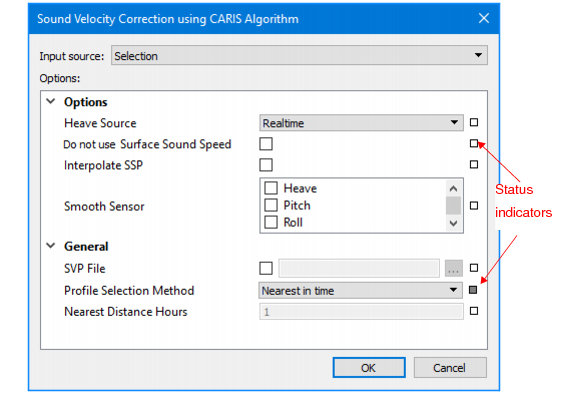
Option | Description |
Input source | 1. Select input • Selection is displayed by default if any track lines are selected. You can change this to “All track Lines” • If no data is selected SVC will be applied to all track lines. For Kongsberg data, select All Track Lines |
Heave source | 1. Set the type of heave to be applied during merge. Realtime: original heave data will be used. Delayed: delayed heave data will be used If you choose this option, and no delayed heave data is available, there will be a warning message in the Output window, and regular heave data will be used instead. |
Do not use Surface Sound Speed | If this option is set: • SSP is not used in the SVC process even if it is available. • the Steered Beam Angle Recomputation option is not available. Note: This option is not available for Kongsberg data, since SSP data will be automatically applied (if available) when the Sound Velocity Correction (Kongsberg) command is used. See Reference - Surface Sound Speed for more information. |
Steered Beam Angle Recomputation | 1. Select the Steered Beam Angle Recomputation check box to re-compute the steered beam angles based on a new surface sound speed that is interpolated from the sound velocity profile. See Steered Beam Angle for more information. This option is disabled if “Do not use Surface Sound Speed” is enabled. |
Smooth Sensor | 1. Select which smoothed sensor data is to be applied during sound velocity correction: Heave, Pitch, Roll, Delta Draft. Sensor data can be smoothed in the Attitude Editor. Note: Waterline values are not interpolated during sound velocity correction. |
SVP File | SVC will use either the sound velocity profile from your converted data, or the last SVP file applied to the data. If SVC has been previously applied, the name of the SVP file used will be displayed in the SVP File field. To select an SVP file: 1. Click the check box to enable the Browse button. 2. Navigate to and select the profile file to apply. |
Profile Selection Method | 1. Select a method from the drop-down list: • Previous in time - Apply the SV profile with a time stamp just prior to and nearest to the time of the recording of the survey data. • Nearest in time - Apply the SV profile that was taken closest in time to the recording of the survey data. • Nearest in distance - Apply the SV profile that was taken closest to the position where the survey data was recorded. This requires that positions be included in the SVP file. • Nearest distance within time - Apply the SV profile with a position that is nearest to the swath and has a time stamp that is nearest to the time of the swath, within a selected range. • Last used method - Apply the last selected profile method to the current SVC. Note: If a line has not had SVC applied previously, attempting to use Last used method for correction will cause the process to fail. In this case, choose another SVC method. |
Nearest Distance Hours | If the Profile Selection Method is set to Nearest in distance within time, this field is enabled. 1. Type the number of hours to use with the Nearest in distance within time profile selection method. |
Procedure
1. Select a track line or group of track lines.
2. Select the Sound Velocity Correction command.
3. Set options in the Sound Velocity Correction dialog box.
If a field is set to a value other than the default value, the status indicator box changes to grey. To reset the value to the default setting:
4. Right-click on the status box and select Reset.
5. Click OK.
Lines which have been SV Corrected will be displayed in the Display window in the “Not Merged” colour (as set in the Properties for the Ship Track Lines layer).
The SVP Corrected field in the Selection window will show “Yes” for any selected line to which SVC has been applied.
You can also view the SV profile information in the process Log Viewer:
1. Open the Log Viewer from the Window> Other Windows menu.
2. Select SoundVelocityCorrect from the left column of the Log Viewer.
The SVC information is listed in the right column of the viewer.
