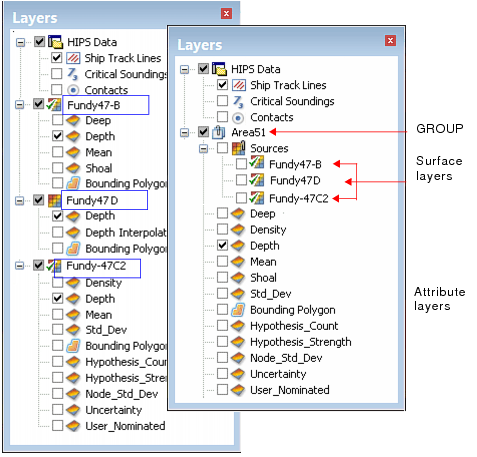
Multiple surfaces can be grouped together, so that the same display properties can be applied consistently to all the grouped surfaces. See “Properties of Surfaces” on page 220.
Grouped surfaces are listed together under a new Sources layer, followed by their combined attribute layers, as in the example below.
When a surface is added to an existing group, the properties of the first of each type of attribute layer included in the group are applied to all other attribute layers of the same type.
For example, if the Depth layer for the grouped surfaces has Filter values set, the Depth layer for a surface added to the group will display data within the filter range, regardless of its settings before it was added to the group.
Create a group
To group multiple surfaces:
1. Right-click on a surface parent layer in the Layers window.
2. Select the Create New command from the pop-up menu.
Pop-up | Group > Create New |
The New Group dialog box is displayed.
3. Type a name for the group layer in the Group Name field.
4. Click OK.
The group is created in the layers tree, and the selected surface is added to the group, under the Sources layer.
Add surface to group
To add another surface to the group:
1. Right-click on the surface to be added.
2. Select Group from the pop-up menu.
Pop-up | Group > group name |
The pop-up sub-menu will list any created and available groups.
(If a selected surface already belongs to a group, that group is greyed out in the pop-up menu, to prevent a surface from being added to a group twice.)
3. Select the group you want to add the surface to.
The surface is added to the group, under the Sources layer.
Group all like types
Group all datasets to the currently selected group that:
• are of the same type as the datasets in this group; and,
• are not already included in a different group of datasets.
1. Select a dataset.
2. Right-click on the group and select Group All Like Types from the pop-up menu.
Pop-up | Group All Like Types |
Unassigned datasets of the selected group type are now included in this dataset group.
Order grouped surfaces
Datasets in a group can be arranged in ascending or descending order according to one of the following metadata attributes:
• Data Start Date
• Data End Date
• Creation Date
This ordering controls both the order of the datasets in the Layers window and their draw order in the Display window.
It is common to draw the oldest data first, having the newest data displayed on top. To achieve this order, sort By End Date (ASC).
To sort grouped datasets:
1. Right-click the group layer in the Layers window.
2. Select the Sort command for the desired ordering.
Pop-up | Sort > By Start Date (ASC/DSC) > By End Date (ASC/DSC) > By Creation Date (ASC/DSC) |
The datasets listed under the Sources layer will be ordered according to the selected command.
Remove a surface from a group
You can remove a surface from a group. It will be listed separately in the Layers window.
To remove a surface from a group:
1. Right -click on the surface you want to remove from the group.
2. Select Group from the pop-up menu.
3. Select None from the sub-menu.
Pop-up | Group > None |
The surface is removed from the group and restored to a position in the Layers window.
Ungroup
To disband the group and restore the component surfaces, use the Ungroup command:
1. Right-click on the group layer.
2. Select Ungroup from the pop-up menu.
Pop-up | Group > Ungroup |
The surfaces are listed separately in the layers window.