Menu | File > Export > Surface to Point Cloud |
Create a Point Cloud using data exported from a gridded surface.
Interface
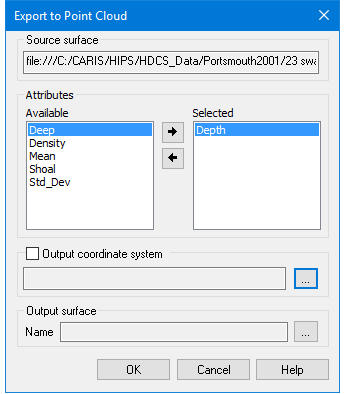
The Export Surface to Point Cloud command uses the following dialog box.
Option | Description |
Source surface | The Source surface is defined by the surface that was selected at the time the command was initiated. This field cannot be changed. |
Attributes | The Attributes lists are used to select the attribute bands to be included in the resulting point cloud. The Available list contains all attributes present in the source surface. The Selected list contains all attributes selected for inclusion in the export. To select attribute bands for the export: 1. Select an attribute in the Available list. 2. Click the right-arrow button. To remove an attribute: 1. Select the attribute in the Selected list. 2. Click the left-arrow button. The primary Z layer is mandatory and cannot be removed from the Selected list. |
Output coordinate system | The coordinate system that will be used to export the selected data. If this option is not selected, the coordinate system of the source data will be used. When enabled, this option is used to launch the Select Coordinate Reference System tool, which is used to select the desired coordinate system. See Change Coordinate Reference System for details on using this tool. |
Output surface | The name and location for the output point cloud file. 1. Click browse (...) to specify a name and location. |
Procedure
1. Select the parent layer of the surface to export.
2. Select the Export Surface to Point Cloud command.
3. Select the Attributes to be included in the export.
4. [Optional] Enable the Output coordinate system option, click browse (...) to launch the Select Coordinate Reference System tool and select a coordinate reference system.
5. Specify a name and location for the Output file.
6. Click OK.
The data is exported to a new point cloud.