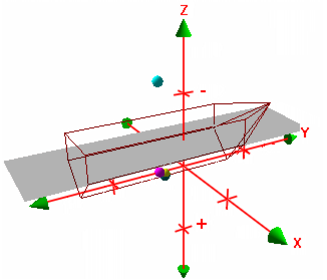
The outline displayed in the editor can be rotated, zoomed and panned using the compass (control axes), keyboard, and mouse.
Compass
Rotation along the X-Y-Z axis is handled by moving the arrow heads at the ends of the compass.
1. To rotate the image up to 90º along the Z-axis, click the middle arrow head and drag the cursor upward so that the image is rotated.
2. To rotate the image up to 360º along the X-Y axis, click any of the other arrow heads and drag the arrow head in a left-right or up-down direction.
3. Alternatively, the image can be rotated in the horizontal plane by grabbing the Z-arrow, then pressing the <Ctrl> key and the left-mouse button and moving the cursor up and down in the view. Rotation around the Z-axis can be performed by pressing the <Shift> key and moving the cursor left and right in these windows.
Pan
There are three pan options:
• To pan along the X-Y axis: place the cursor in the 3-D area, press the middle mouse button and drag the display to a new location.
• To pan along the Z-axis: place the cursor in the 3-D area, press and hold both the <Shift> key and middle mouse button and move the cursor in the window.
• To centre the 3-D Display window on a selected point: position the cursor over the point and click the middle mouse button.
Zoom
The zoom option is similar to pan.
1. Press and hold both the <Ctrl> key and right-mouse button while dragging the mouse up or down to zoom in or zoom out.