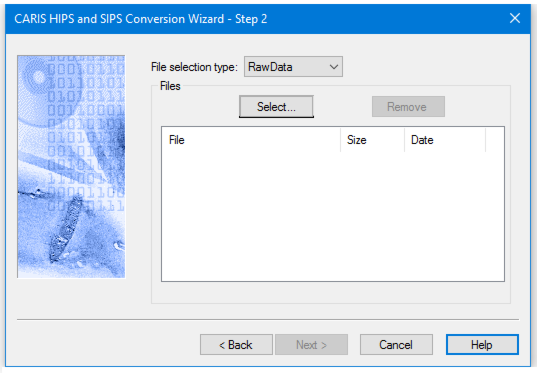
In the workflow for most converters this dialog box will appear so that you can select the files to be converted. However, some formats have other import options to set before selecting data files from here. (See Import Options.)
The Time Buffer for Data Processing option defaults to a 10 second search buffer for files where complete raw datagrams are split across two files. (See Tools > Options > Edit > Processes. |
Interface
The Step 2 dialog box has the options of type of data file to select.
If you are converting multibeam data with the Hypack converter, select HSX files, not RAW files for conversion. |
If you have selected Raw Data as the File selection type, clicking Select will open the Select Files dialog box. (The default directory for Raw Data is …\Hips\Preprocess.)
If you select Project, Vessel or Day as the File selection type, Select will open the P/V/D tree structure so you can browse for the folder containing the files you want to convert.
Procedure
1. Select the appropriate File selection type from the drop-down list. The default is Raw Data.
2. Click Select to choose the files you want to convert.
3. [Optional] To remove a file from the list, select it and click Remove.
4. Click Next to set Import Options.