Tool |
|
Pop-up | Line Digitizer > Fitted Curve Area Digitizer > Fitted Curve |
Tool |
|
Pop-up | Line Digitizer > Fitted Curve Area Digitizer > Fitted Curve |
Use with the Create Line Feature or Create Area Feature command.
A curve is fitted between points that you enter, using a mathematical algorithm based on polynomials.
Related commands:
Procedure
1. Choose the Digitize Fitted Curve command.
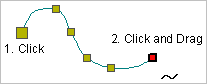
2. Click once at the location of the first point (1).
3. Do one of the following:
• Click at the location of the second point.
• Press and hold the mouse button and drag the second point to its location then release the button.
Pressing and dragging will give you a preview of the curve. |
The curve of the line segments changes as you add points, to fit the new shape of the line.
4. Continue until all points are added.
5. End or close the line.
Pop-up | Line Digitizer > End Line Line Digitizer > Close Line |
Key | <End> <Home> |
Close line joins the first point in the line to the last point.
The new curved line feature is created.
