Menu | Tools > New Publication |
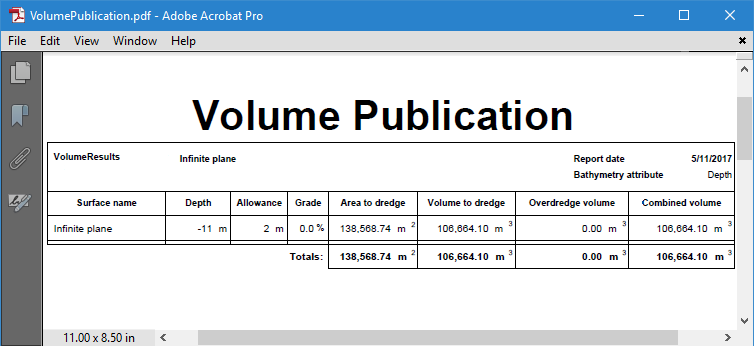
Volume computation results can be exported to a PDF using the New Publication command, creating a volume results report.
The publication is created using a publication template. A default volumes publication template, volume_publication_template.rpx, is provided with the application. This file is located at:
C:\ProgramData\CARIS\<application>\<version>\SampleData\
The publication objects for this template include the date relevant to the calculation and the XML file containing the volume computation results.
Refer to New Publication for information on the New Publication tool.
Procedure
1. Open the surface for which volumes were calculated.
2. Select the surface parent layer in the Layers window.
3. Select the New Publication command.
The New Publication dialog box is displayed.
4. Select a volumes template file.
5. Under Publication objects, select Date and Time - Date Only.
6. Click in the Text field objects field to make it active and auto-populate with the current date.
7. If necessary, edit the date then click Set.
8. Under Publication objects, select Volumes Results.xml.
9. Click the browse button (...) for XML file objects and select the relevant volume results file.
The check boxes beside each publication object should now have a check mark in them, indicating that they will be included in the publication.
10. Click Publish.
11. Define a name and location for the publication file, then click Save.
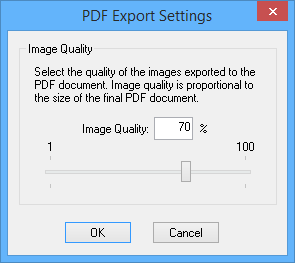
The PDF Export Settings dialog box is displayed.
12. Use the slider bar to select the quality level to use for exporting the images in the publication—the higher the quality, the larger the file.
13. Click OK.
The publication is generated and stored as a PDF file in the specified location.
The New Publication tool remains open to create additional reports if needed.
14. Click Close to close the dialog box.