Menu | Help > User Guides |
Display the documentation for the application.
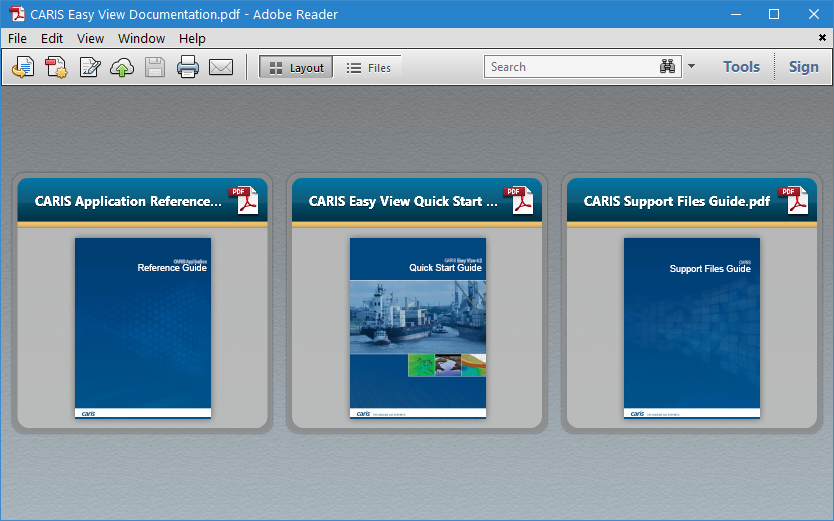
The documentation is delivered in the format of a PDF portfolio, which provides thumbnails for each of the documents included in the application. Each thumbnail represents a different document.
It is recommended that you use Adobe Reader to view this file as the portfolio functionality may not be handled well by all PDF viewers. Also, the instructions below are specific to Adobe and some functionality may be different or not available in other PDF viewers.
PDF portfolios cannot be viewed in Microsoft Edge 25. |
You can preview a document by double-clicking a thumbnail. When in preview mode, a toolbar is displayed for navigating in the document.

Button | Description |
Extract file | Save the document to a user-specified location. The file name will default to the name of the PDF when it was added to the portfolio. |
Show info view | Display file information about the current selected thumbnail, such as the name and size of the file. |
Show previous page | Display the previous page in the document. |
Show next page | Display the next page in the document. |
Page number | Display a specific page in the document by entering a page number in the box and pressing the <Enter> key. |
In addition to the toolbar, the following controls are also provided in preview mode:
Button | Description |
Show next/previous file | The left and right arrow buttons at the sides of the preview area are used to change the document being previewed. Click the Left arrow button to preview the previous document and the Right arrow button to preview the next document. |
Exit (X) | The X button in the top-right corner of the previewed document is used to exit preview mode. |
This file can be launched from the Windows Start screen using the CARIS Application Documentation item if the application is not running.
Procedure: Open a Document
Original documents can be opened in a PDF viewer by selecting the Open File command or by double-clicking a file that is being previewed. The Open File command is available in numerous locations:
• the pop-up menu of a thumbnail
• the pop-up menu of a previewed file
• the link in the top-right corner of the application when a file is being previewed
Procedure: Extract a Document
A document can be saved using the Extract from Portfolio command. This command is available in numerous locations:
• the pop-up menu of a thumbnail
• the pop-up menu of a previewed file
• the toolbar for a previewed file
Procedure: Search All Documents
The Search field in the PDF viewer can be used to search all documents in the portfolio simultaneously.
1. Type a search term in the Search field and click the search button.
A list of the documents containing the search term is displayed. Each document in the list can be expanded to show each instance of the search term in the document.
2. Click an item in the search results to preview the selected topic.
The selected topic is displayed. You can browse the through list of results using the Left and Right arrow buttons beside the Search field. As you change topics, the name of the current document is displayed below the toolbar, which also provides a Close Preview button to return to the portfolio view.
The toolbar in this mode provides additional tools to print or save the current document.
3. Click Close Preview to return to the portfolio view.
Procedure: Print a Document
Individual documents can be printed from the portfolio without having to open or save the document.
1. Select a thumbnail.
2. Select the Print command in the PDF viewer.
3. Define any necessary print settings and click Print/OK.