Menu | Model > Update Features > Set Relevance Distances Above/Around/Below Surfaces |
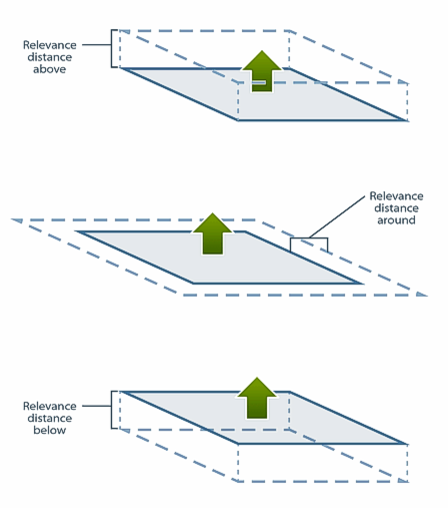
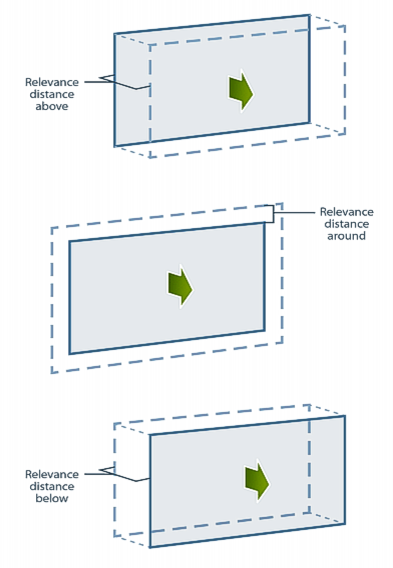
Relevance distances define the distance from a plane to be considered when importing data and creating raster surfaces relative to reference model surfaces, such that distant irrelevant features are not included. Relevance distance can be set above, below or around a plane.
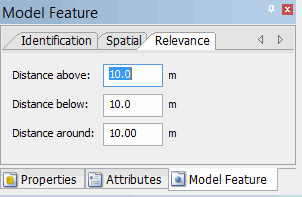
In the relevance distances figures represented below, green arrows indicate the direction of the planar normal. This direction is always up for horizontal or inclined surfaces, but can be manually set for vertical surfaces through the Relevance tab.
The figures below depict the relevance distances associated with a horizontal wall.
The figures below depict the relevance distances associated with a vertical wall.
Interface
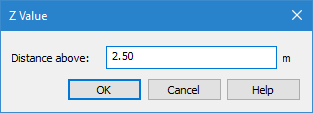
The Set Relevance Distances commands use the following dialog box.
Option | Description |
Distance above/around/below | The value to assign as the relevance distance above, below or around the selected surfaces, depending on the command in use. |
The relevance distances can also be set for an individual reference model surface using the Relevance tab of the Model Feature window.
Procedure
1. Select the Surfaces layer in the Layers window.
2. Select one or more surfaces in the Display window.
3. Select the Set Relevance Distances Above/Around/Below Surfaces command.
The Z Value dialog box is displayed.
4. Type a Distance value.
5. Click OK.
The relevance distance value is applied to all selected surfaces.