Menu | Database > Queries > By Attribute Value |
Tool |
|
Pop-up | Queries > By Attribute Value (Layers window) |
The display of data from a database connection layer can be filtered by creating a filter layer from the connection. The filter layer is created using an attribute value rule. This is similar to the Query command, except that this method applies a temporary attribute rule to the display rather than creating a rule file that can be saved for later use.
Filter layers can also be created using the following commands, both of which are accessible from the Create menu and the pop-up menu of the database connection layer:
• By Rule Wizard, see Query by Rule Wizard
• By Rule File, see Query by Rule File
To create a filter layer for a database connection:
1. In the Layers window, select a database layer.
2. Select the By Attribute Value command.
Menu | Database > Queries > By Attribute Value |
Tool |
|
Pop-up | Queries > By Attribute Value (Layers window) |
The Create by Attribute Value dialog box is displayed.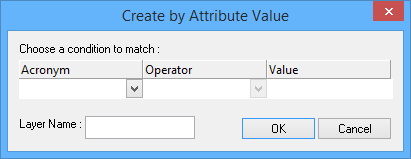
3. Select an attribute acronym from the list.
4. Select an operator from the list:
• Equals
• Does not equal
• Less than
• Less than or equal
• Greater than
• Greater than or equal
5. Type a value to be matched.
6. Click in the Layer Name box to automatically generate a name based on the condition, or type your own name for the layer.
7. Click OK.
A child layer is added under the database connection layer. This layer provides access to all objects that meet the filter criteria.
